
User's Manual

59
Appendix H
Appendix H
How to Read Key System Indicators and Reset Alignment Values
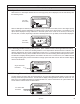
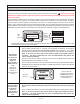
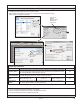
Read System Key Indicators (Conguration)
1. Start Bendix
®
ACom
®
Diagnostics and connect to vehicle.
2. Select “Advanced” and Click “Start with ECU” to display the “Advanced Status” window.
3. Select “Cong” to display the indicators
Take Note of:
Model #,
Software Version,
Software P/N,
Active DTCs
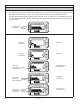
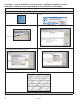
System Key Indicators
Attribute Description See Section:
Mounting Offset
This value should equal 0 if the radar sensor is mounted on the center line of the vehicle.
If the service technician believes the radar sensor should be mounted offset from center,
call 1-800-AIR-BRAKE (1-800-247-2725, option 2).
6.2
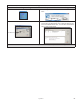
Stationary Object
Warning Indicator
This is a status indicator for the function of stationary object warning. Available for use
in Bendix
®
Wingman
®
Advanced
™
system versions since 2010.
1.7
Lateral Alignment
Value
Trouble code will be set if
value is less than -1.5º
Normal operation
-1.5º to 1.5º
Trouble code will be set if
value is more than 1.5º
6.8
Conguration
Number
This indicates the distance setting and following distance alert that are congured for
the vehicle. Refer to Table 7 for setting information.
5.4
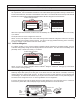
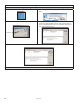
How To Reset The (Lateral) “Alignment Value”
4. From the conguration window shown above, click “Modify.”
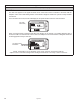
5. From the Change Conguration window, select “Reset Alignment Value.”
6. Cycle the vehicle ignition power to complete the process.
Call the Bendix Tech Team at 1-800-AIR-BRAKE (1-800-247-2725, option 2) for troubleshooting assistance.