
Operation Manual

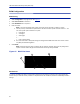
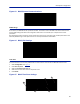
Table Of Contents
- Safety Precautions
- About This Manual
- Table of Contents
- Chapter 1 Introduction
- Chapter 2 System Description
- Chapter 3 Installation guidelines
- Chapter 4 DAS Software Configuration
- Chapter 5 Commissioning
- Chapter 6 RF Commissioning
- Chapter 7 Troubleshooting
- Alarms
- Base Station Gateway (BGW) Alarms
- Fiber Optic Remote (FOR) Alarms
- Remote Unit (RU) Alarms
- Fiber optic Interface (FOI) Alarms
- Base Station Interface (BIU) Alarms
- Medium Power Amplifier (PA) Alarms
- Variable Gain Amplifier (VGA) Alarms
- Analog Pre-distortion (APD) Amplifier Alarms
- Multi-carrier Power Amplifier Interface (MPI) alarms
- Alarms
- Chapter 8 Model Identification

66
Chapter 4 DAS Software Configuration
This section is focused on the GUI interface and initial software setting of the DAS. No special software is require to
access the Bird DAS. Access is provided via most web browsers such as Mozilla Firefox or Google Chrome.
The BGW should be powered up and allowed about 5 minutes to fully boot prior to applying po
wer to the Master
Unit. The BGW will assign IP addresses to the Master Unit components. If the Master Unit is powered up prior to the
BGW then it could take up to 30 minutes for the Master Unit components to get assigned an IP address. Master Unit
cards will show a quick flash of the green LED when an IP address has been assigned.
Special Note: The following is based on version 3.5 software.
Ethernet Connection
1. Connect a laptop to any open port on the Headend Ethernet switch.
2. Ensure the laptop network settings have DHCP enabled and the “Obtain an IP address automatically” radio
button checked.
Figure 60 Windows TCP/IP Settings
3. Using an Internet browser go to https://172.22.0.1 to access the BGW. A successful entry will show access to
the login page.
4. Login to the BGW.
Username: "extended"
Password: "admin"
Figure 61 BGW Login page