
User's Manual

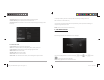


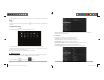
Table Of Contents

D2 PAD | 8
In different applications, you can return to the upper layer or previous interface by touching the Return
icon.
In different applications, you can touch the Advanced icon to show relevant options available in the
application.
1.5 Application Menu
Tap the Application icon to view the application menu screen.
In the application menu interface, simply touch an application icon to open the application.
In applications with browsing capabilities, such as Explorer, Music, etc., you can drag the scroll bar up
and down or flick the screen to scroll the file list.
In Browser or PDF reader, touch and drag the page to scroll up/down.
2. Basic Settings
Personalize applications, set system date and time, configure network connection, and change other
settings in the Settings page. To open the Settings page, do one of the following:
• Touch the Application icon, and then tap Settings.
D2 PAD | 13
• Google’s location service: When checked, applications use data from Wi-Fi or mobile networks to
determine your approximate location.
2.3.3 Security
The Security menu allows you to set device security options.
• Screen lock: Select the method of unlocking the screen.
• Owner info: Display the owner information on a locked screen.
• Encrypt tablet: Encrypt the device with a PIN or password.
• Make passwords visible: Display password characters as you type them on screen.
• Device administrators: View or deactivate device administrators.
• Unknown sources: Run and install application programs not from Google market.
D2-711_911UserManual.indd Spread 10 of 12 - Pages(10, 15)D2-711_911UserManual.indd Spread 10 of 12 - Pages(10, 15) 9/20/2012 6:34:41 PM9/20/2012 6:34:41 PM