
User's Manual

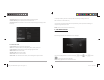




Table Of Contents

D2 PAD | 10
• The Wi-Fi icon displaying indicates Wi-Fi is turned on.
Connect to an Access Point
1. Turn on Wi-Fi. The device will search for available networks within range and display the searched
Access Point (AP) names on the right panel.
2. Tap the access point name that you wish to connect to. If the selected access point is protected by a
password, the device will prompt for the password. (Note: Password entry is only required when
connecting to the AP for the first time.)
3. When prompted, enter the password to connect to the AP.
4. Tap Connect.
Other Wi-Fi Options
Tap the Advanced icon on the upper-right corner of the screen to display advanced options and
other network information.
When the Network notification option is checked, the system automatically scans and displays available
networks within range. If it is unchecked, you must tap SCAN to manually scan for nearby networks and
tap ADD NETWORK to manually do so.
*Note: The D2 Pad recognizes Wi-Fi networks that it has connected to before. Once Wi-Fi is turned on
and a known connection is detected, the device automatically connects to that network.
D2 PAD | 11
2.2 Device
2.2.1 Sound
Set the tone and sound notifications.
• Volumes: Includes volume adjustments for Music, Video, Games and other medium, notifications and
alarm clock. Drag the slider bar to adjust the volume.
• Default notification: Set the default notification ringtone.
• Touch sounds: Activate sound when you make selection on the screen.
• Screen lock sound: Activate sound when you unlock or lock the screen.
2.2.2 Display
D2-711_911UserManual.indd Spread 12 of 12 - Pages(12, 13)D2-711_911UserManual.indd Spread 12 of 12 - Pages(12, 13) 9/20/2012 6:34:43 PM9/20/2012 6:34:43 PM