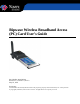
Ripwave Wireless Broadband Access (PC) Card User’s Guide Part Number 40-00292-00 Revision A, Version 1.0, PV1.2 May 25, 2005 Proprietary All information disclosed by this document is the proprietary property of Navini Networks, Inc. and is protected by copyright, trademark, and/or trade secret laws. All rights therein are expressly reserved.
Navini Networks, Inc. Ripwave Wireless Broadband Access (PC) Card User’s Guide TABLE OF CONTENTS PERMISSIONS, TRADEMARKS & DISTRIBUTION................................................................................................................... 3 SAFETY ........................................................................................................................................................................................ 4 REGULATORY INFORMATION.........................................
Navini Networks, Inc. Ripwave Wireless Broadband Access (PC) Card User’s Guide Permissions, Trademarks & Distribution Copyright© 2004 - 2005, Navini Networks, Inc. All information contained herein and disclosed by this document is confidential and the proprietary property of Navini Networks, Inc. and all rights therein are expressly reserved.
Navini Networks, Inc. Ripwave Wireless Broadband Access (PC) Card User’s Guide Safety When using a Ripwave Wireless Broadband Access Card, always follow basic safety precautions to reduce the risk of electrical shock, fire, and injury to people and/or property. Follow all warnings and instructions that come with the equipment. 1. Do not use the equipment while you are in a bathtub, shower, pool, or spa.
Navini Networks, Inc. Ripwave Wireless Broadband Access (PC) Card User’s Guide Regulatory Information This Ripwave Wireless Broadband Access Card has been tested with a typical laptop computer with a side loading PCMCIA bay. This PC Card must not be co-located or operated in conjunction with any antenna (other than the one furnished by Navini and included in the package) or transmitter.
Navini Networks, Inc. Introduction Ripwave Wireless Broadband Access Card User’s Guide Congratulations! The Ripwave Wireless Broadband Access Card, or PC Card for short, is a user-friendly, easy-to-install device that helps you connect wirelessly to the Internet using the Network Interface Card (NIC) port on a laptop computer. It provides complete broadband Internet access to residential and small office/home office (SOHO) users without the necessity of professional hardware installation.
Navini Networks, Inc. Minimum Computing Requirements Ripwave Wireless Broadband Access Card User’s Guide Operating System1: (See, also, Addendum 1) CPU: RAM: Hard Drive: Monitor: Windows 98SE, Windows 2000, Windows ME, or Windows XP. It is assumed the latest Windows service pack is installed on the Operating System. Note: The PC Card is not supported on MacIntosh systems or Linux/Unix systems.
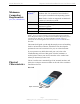
Navini Networks, Inc. Physical Characteristics, continued Ripwave Wireless Broadband Access Card User’s Guide Depending on which model you have, one or two internal invertedF antennas reside inside the card. The 2.5-2.6 GHz model has one internal inverted F antenna while the 3.4 and 3.5 GHz models have two internal inverted F antennas. There is also an external antenna. Following is a picture of the external antenna in the upright position.
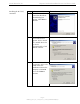
Navini Networks, Inc. Installing the PC Card, continued Ripwave Wireless Broadband Access Card User’s Guide Step Action 4. The Welcome to the Found New Hardware Wizard dialog box appears. Click Next to continue. Illustration Windows 2000 Screen 5. The Install Hardware Device Drivers box appears. Select ‘Search for a suitable driver for my device (recommended).’ Click Next to continue. Windows 2000 Screen 6. The Locate Driver Files box appears. Select ‘CD ROM.
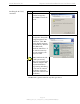
Navini Networks, Inc. Installing the PC Card, continued Ripwave Wireless Broadband Access Card User’s Guide Step Action The Driver Files Search 7. Results box appears. Click Next to install the driver. 8. The Hardware Install box appears, along with a Digital Signature Not Found box. Click Yes on the Digital Signature Not Found box, and then click Yes on the Hardware Install box. If the sound is turned up on your computer, two beeps are heard.
Navini Networks, Inc. Installing the PC Card, continued Accessing the Internet Disconnecting the PC Card Ripwave Wireless Broadband Access Card User’s Guide Step Action 9. After the files are copied, a Completing the Found New Hardware Wizard box appears indicating the driver installation is complete. Click Finish to close the Wizard.
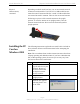
Navini Networks, Inc. Disconnecting the PC Card, continued Ripwave Wireless Broadband Access Card User’s Guide Once you click on the icon indicated, a list with one or more elements will appear. This list is dependent on the devices currently installed on the PC. For example: Select Stop Navini Networks PCMCIA Adapter. Next, the Stop a Hardware Device dialog box appears. Click OK. You can now unplug the Card. The computer will beep indicating the Card was unplugged.
Navini Networks, Inc. Indicator Light Ripwave Wireless Broadband Access Card User’s Guide An indicator light on the top of the PC Card’s black encasement provides information about the Card’s operation. When the light is solid, the Card is trying to synchronize with a BTS. When the light blinks, the Card has acquired synchronization with a Base Station.
Navini Networks, Inc. Installing Navini Diagnostics (NavDiag) Software, continued Ripwave Wireless Broadband Access Card User’s Guide If you are going to upgrade your PC Operating System after loading the Navini Diagnostics software, you must first uninstall NavDiag prior to upgrading the OS. Otherwise, NavDiag will not work. See Uninstall instructions in this Guide. Note: The screenshots shown in these instructions were taken from a laptop with Windows 2000.
Navini Networks, Inc. Installing Navini Diagnostics (NavDiag) Software, continued Ripwave Wireless Broadband Access Card User’s Guide *NOTE: In step 6, your version of NavDiag may automatically attempt to match the language set on your PC under Regional Options. The language selection affects how NavDiag displays its screens. If you receive an error message concerning the language, click OK and NavDiag will default to English. At this time, NavDiag supports three languages: 1. English (U.S.), 2.
Navini Networks, Inc. Installing Navini Diagnostics (NavDiag) Software, continued Ripwave Wireless Broadband Access Card User’s Guide Step Action Illustration 9. The License Agreement Windows 2000 Screen screen appears. Read the Licensing Agreement. Select the I Accept option, and click Next to continue. 10. 11. If the License Agreement is not accepted, you cannot install the software. The Choose Install Folder screen appears. Enter the name of the folder where you wish to install the software.
Navini Networks, Inc. Installing the Navini Diagnostics (NavDiag) Software, continued Ripwave Wireless Broadband Access Card User’s Guide Step Action 12. The Pre-Installation Summary screen appears. Review the contents for accuracy. Click Install to continue. 13. 14. For your installation and computer, this screen may have different information than what is shown in the illustration. The Installing screen will change as the application files are loaded.
Navini Networks, Inc. Using Navini Diagnostics Ripwave Wireless Broadband Access Card User’s Guide To open the Navini Diagnostics software application, double-click on the Navini Diagnostics icon on your desktop. Navini Diagnostics.lnk The Connection Status screen will open and display data if the Card is in use. The screen will refresh live data every second.
Navini Networks, Inc. Using Navini Diagnostics, continued Ripwave Wireless Broadband Access Card User’s Guide The Signal Strength and Signal Quality are dynamic bar areas that indicate how well your PC Card is receiving signals from the Base Station. In particular, the Signal Strength bar area graphically represents the strength of the Absolute BTS Synchronization Signal received by the PC Card. The strength of the signal is represented by a group of colored bars.
Navini Networks, Inc. Using Navini Diagnostics, continued Ripwave Wireless Broadband Access Card User’s Guide The History graphs plot the change in signal strength and signal quality over time. The graphs cover the last minute and are updated every second. Read the graphs from right to left. The right side of the graph represents the most recent status of your PC Card. At the bottom of the Connection Status screen are four parameters.
Navini Networks, Inc. Using Navini Diagnostics, continued Ripwave Wireless Broadband Access Card User’s Guide The following screen appears when you select Configuration. This screen enables you to update your Card’s software, if directed to do so by your Service Provider. The “Allow Customer Satisfaction Reporting” feature is not currently supported in the PC card. The Trend Analysis screen enables you to view Card parameters that evolve over time.
Navini Networks, Inc. Ripwave Wireless Broadband Access Card User’s Guide Using Navini Diagnostics, continued To view the Statistics screen, press the Statistics button. The Statistics screen enables you to view the current value of selected parameters, which are updated as they change over time. The About screen provides vital information such as the version of the Navini Diagnostics software currently installed on your computer.
Navini Networks, Inc. Ripwave Wireless Broadband Access Card User’s Guide Using Navini Diagnostics, continued A Help button appears on the top right corner of all the NavDiag windows. The Help button gives you two options. The first option, On NavDiag, provides help text on the functionality of the NavDiag program. The second option, About NavDiag, is equivalent to clicking on the About icon. Uninstalling Navini Diagnostics Software If for some reason you need to uninstall the NavDiag software, e.g.
Navini Networks, Inc. Uninstalling NavDiag Software, continued Optional Desktop Antenna Ripwave Wireless Broadband Access Card User’s Guide Step Action 2. The Install-Anywhere Uninstaller screen appears. Click Uninstall. Illustration Windows 2000 Screen 3. The screen will indicate the application files are uninstalled. Windows 2000 Screen 4. The Uninstall Complete screen appears when finished. Click on Quit to close the Uninstall screen. Windows 2000 Screen 5.
Navini Networks, Inc. Ripwave Wireless Broadband Access Card User’s Guide Optional Desktop Antenna, continued To connect the desktop antenna to the PC Card, you must first remove the antenna attached to the PC Card. To remove the antenna, grasp the base of the antenna near its connection point and then firmly pull the antenna away from the card. Do not grasp the top or middle of the antenna as it may break when you try to pull the antenna away.
Navini Networks, Inc. Care and Maintenance, continued Ripwave Wireless Broadband Access Card User’s Guide If there is a problem with the Card, do not attempt to repair it yourself. Report the problem to your Service Provider. Do not apply adhesive labels to the Card. This may cause the card to become jammed inside the card slot. The PC Card should fit easily into the PC slot. Do not force the card into the PC slot. Forcing the card into the slot may cause damage to the connector pins.
Navini Networks, Inc. Ripwave Wireless Broadband Access Card User’s Guide ADDENDUM 1: PC Card - PC Troubleshooting - For Use With the Ripwave Wireless Broadband Access Card & Navini Diagnostics Software PC Operating Systems Prior to installing the Navini Diagnostics (NavDiag) software, please check to ensure that the PC Operating System meets the criteria given in the table below. If these criteria are not met, unpredictable problems may occur as a result of installation.
Navini Networks, Inc. Ripwave Wireless Broadband Access Card User’s Guide Install Log Detail: Check Disk Space: C:\Program Files\NavDiag Status: SUCCESSFUL Additional Notes: NOTE - Required Disk Space: 29,363,315; Free Disk Space: 30,806,179,840 Install Directory: C:\Program Files\NavDiag\ Status: SUCCESSFUL Get Registry Entry: Key: HKEY_LOCAL_MACHINE\SOFTWARE\Navini Networks\NavDiag, ValueName: InstallDirectory Status: WARNING Additional Notes: WARNING - Win32Exception Make Registry Entry: Key: HKEY_LOCA
Navini Networks, Inc. Ripwave Wireless Broadband Access Card User’s Guide Status: SUCCESSFUL Make Registry Entry: Key: HKEY_LOCAL_MACHINE\SOFTWARE\Microsoft\Windows\CurrentVersion\Uninstall\Navini Diagnostics, Value Name: UninstallString, Value Data: "C:\Program Files\NavDiag\Uninstall\Uninstall NavDiag.exe" Status: SUCCESSFUL Install Uninstaller: Navini Diagnostics (Install All Uninstaller Components) Status: SUCCESSFUL Create LaunchAnywhere: Navini Diagnostics.
Navini Networks, Inc. Ripwave Wireless Broadband Access Card User’s Guide Install File: C:\Program Files\NavDiag\data\lib\ctl.jar Status: SUCCESSFUL Install File: C:\Program Files\NavDiag\data\lib\navDiag.jar Status: SUCCESSFUL Install File: C:\Program Files\NavDiag\data\lib\jfreechart-0.9.13.jar Status: SUCCESSFUL Install File: C:\Program Files\NavDiag\data\lib\jcommon-0.8.8.jar Status: SUCCESSFUL Install File: C:\Program Files\NavDiag\data\lib\log4j.
Navini Networks, Inc. Ripwave Wireless Broadband Access Card User’s Guide ADDENDUM 2: End User Software License Agreement between Navini Networks, Inc. and Buyer ARTICLE 1 IMPORTANT MESSAGE 1.1 Act of Assent. Installing the Software indicates that you have read, understand and accept this License Agreement. ARTICLE 2 LICENSES 2.1 2.2 2.3 2.4 Grant of License. The Software and related Documentation, are the intellectual property of Navini Networks, Inc. and are protected by law.
Navini Networks, Inc. Ripwave Wireless Broadband Access Card User’s Guide 2.5 Suitability. a. Buyer alone is responsible for determining which software best suits Buyer’s needs, for installing and operating the Software, and for the results obtained. Accordingly, each Buyer should determine its needs, and evaluate the Software’s capabilities before making a final decision about licensing the software. b. Navini Networks, Inc.
Navini Networks, Inc. Ripwave Wireless Broadband Access Card User’s Guide ARTICLE 4 INDEMNIFICATIONS AND WARRANTY 4.1 4.2 Intellectual Property Indemnification; Entire Liability. ARTICLE 15 OF THE SUPPLY AGREEMENT TO WHICH THIS AGREEMENT IS ATTACHED STATES THE ENTIRE LIABILITY OF NAVINI NETWORKS, INC.
Navini Networks, Inc. Ripwave Wireless Broadband Access Card User’s Guide ARTICLE 6 OBJECT CODE ONLY-NO MODIFICATIONS 6.1 6.2 6.3 Modifications. In order to maintain the “trade secret” status of the information contained in the Licensed Software, Navini Networks, Inc. provides the Software in object-code form only. Buyer shall not modify, enhance, adapt, disassemble, translate, decompile or otherwise decode any portion of the object code of the Software module.