
User's Guide
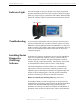
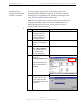
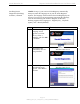
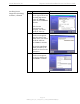
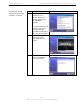
Table Of Contents
- Permissions, Trademarks & Distribution
- Safety
- Regulatory Information
- Introduction
- Package Inventory
- Ripwave Models
- Minimum Computing Requirements
- Physical Characteristics
- Installing the PC Card on Windows 2000
- Accessing the Internet
- Disconnecting the PC Card
- Indicator Light
- Troubleshooting
- Installing Navini Diagnostics (NavDiag) Software
- Using Navini Diagnostics
- Uninstalling Navini Diagnostics Software
- Optional Desktop Antenna
- Care and Maintenance
- Upgrading the PC Card
- ADDENDUM 1: PC Card - PC Troubleshooting
- ADDENDUM 2: End User Software License Agreement

Navini Networks, Inc. Ripwave Wireless Broadband Access Card User’s Guide
Page 13
050525_pv1.2_PC_Card_User’s_Guide_40-00292-00b(4.3)
Indicator Light
Troubleshooting
Installing Navini
Diagnostics
(NavDiag)
Software
An indicator light on the top of the PC Card’s black encasement
provides information about the Card’s operation. When the light is
solid, the Card is trying to synchronize with a BTS. When the light
blinks, the Card has acquired synchronization with a Base Station.
If you experience difficulties with your Internet connection after
you have installed the PC Card driver software, please review the
Minimum Computing Requirements and Addendum 1 in this User
Guide to ensure your computer meets those requirements. Next, go
back over the installation procedures and ensure all steps were
completed properly.
Assuming the computer requirements are met and the installation
steps were completed as required, you may need to install the
Navini Diagnostics software. The Navini Diagnostics software
assists in solving connection problems. This software is provided
on the Installation CD that came in your PC Card package.
The Navini Diagnostics software enables you to troubleshoot
signal issues, network connections, and power problems. Two
important types of information it provides are signal strength and
quality of the incoming signal. It can also provide information
about the connectivity to the Service Provider’s network.
Before you install your NavDiag software, please note:
For Windows 2000 you must be logged into an account having
Administrative privileges in order to install the Navini Diagnostics
software. For Windows 98SE Operating Systems (OS), the
Windows OS CD may be required to complete the installation. If
prompted, insert the OS CD into the drive and accept the defaults.
Indicator Light