
User's Guide
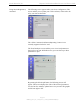
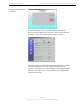
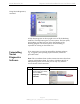
Table Of Contents
- Permissions, Trademarks & Distribution
- Safety
- Regulatory Information
- Introduction
- Package Inventory
- Ripwave Models
- Minimum Computing Requirements
- Physical Characteristics
- Installing the PC Card on Windows 2000
- Accessing the Internet
- Disconnecting the PC Card
- Indicator Light
- Troubleshooting
- Installing Navini Diagnostics (NavDiag) Software
- Using Navini Diagnostics
- Uninstalling Navini Diagnostics Software
- Optional Desktop Antenna
- Care and Maintenance
- Upgrading the PC Card
- ADDENDUM 1: PC Card - PC Troubleshooting
- ADDENDUM 2: End User Software License Agreement

Navini Networks, Inc. Ripwave Wireless Broadband Access Card User’s Guide
Page 21
050525_pv1.2_PC_Card_User’s_Guide_40-00292-00b(4.3)
Using Navini Diagnostics,
continued
The following screen appears when you select Configuration. This
screen enables you to update your Card’s software, if directed to do
so by your Service Provider.
The “Allow Customer Satisfaction Reporting” feature is not
currently supported in the PC card.
The Trend Analysis screen enables you to view Card parameters
that evolve over time. With this screen, you can select up to three
parameters to plot.
By pressing the Plot Graph button, the following screen will
appear. This screen displays the value of the selected parameters
over the last five minutes, updated once every second. The graphic
scrolls from right to left.