
User's Guide
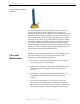
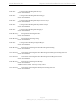
Table Of Contents
- Permissions, Trademarks & Distribution
- Safety
- Regulatory Information
- Introduction
- Package Inventory
- Ripwave Models
- Minimum Computing Requirements
- Physical Characteristics
- Installing the PC Card on Windows 2000
- Accessing the Internet
- Disconnecting the PC Card
- Indicator Light
- Troubleshooting
- Installing Navini Diagnostics (NavDiag) Software
- Using Navini Diagnostics
- Uninstalling Navini Diagnostics Software
- Optional Desktop Antenna
- Care and Maintenance
- Upgrading the PC Card
- ADDENDUM 1: PC Card - PC Troubleshooting
- ADDENDUM 2: End User Software License Agreement

Navini Networks, Inc. Ripwave Wireless Broadband Access Card User’s Guide
Page 24
050525_pv1.2_PC_Card_User’s_Guide_40-00292-00b(4.3)
Uninstalling NavDiag
Software, continued
Optional
Desktop
Antenna
Step Action Illustration
2. The Install-Anywhere
Uninstaller screen
appears. Click
Uninstall.
Windows 2000 Screen
3. The screen will indicate
the application files are
uninstalled.
Windows 2000 Screen
4. The Uninstall Complete
screen appears when
finished. Click on Quit
to close the Uninstall
screen.
Windows 2000 Screen
5. Restart the PC to
complete the uninstall
process. This will ensure
it functions properly
after uninstalling.
An optional desktop antenna is available for the Ripwave Wireless
Broadband Access Card. This antenna connects to the PC Card and
then sits on a surface next to the laptop. This antenna should be
used if optimal reception can not be obtained through the PC Card
antenna. Following is a picture of the optional desktop antenna.