EFT DRAFT - CISCO CONFIDENTIAL Contacts Assign a Fast-Dial Code to a Personal Directory Entry 1. Press the Contacts button . 2. Sign in to Personal Directory. (Use the Navigation pad and Select button to scroll and select.) 3. Select Personal Address Book. 4. Enter the name information and press the Submit softkey. 5. Press the Select softkey, then press the FastDial softkey. 6. Select a number and press the Select softkey. 7.
EFT DRAFT - CISCO CONFIDENTIAL 70 OL-19963-01
EFT DRAFT - CISCO CONFIDENTIAL Messages Voice Messages Voice messages are stored on your voicemail system. Your company determines the voicemail system your phone uses. You can: • Personalize your voicemail • Check for voice messages • Listen to voice messages Personalize Your Voicemail Press the Messages button , then follow the voice prompts. Check for Voice Messages Check for voice messages in any of these ways: • Look for a solid red light on your handset.
EFT DRAFT - CISCO CONFIDENTIAL You can set up audible message waiting using your User Options Web pages. Related Topics • Change the Audible Voice Message Indicator Setting Per Line, page 102 • Change the Voice Message Indicator Setting Per Line, page 101 Listen to Voice Messages 1. To listen to voice messages, do one of the following: • Press the Messages button . • Select a line on which there is a Message icon – Press the Session button .
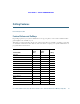
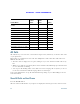
EFT DRAFT - CISCO CONFIDENTIAL Calling Features Revised: August 21, 2009 Feature Buttons and Softkeys Depending upon how your system administrator sets up your phone, some features included in this guide might not be available to you. This table provides information about some of the features that are available on softkeys, some that are available on dedicated feature buttons, and some that are set up by your system administrator on programmable feature buttons.
EFT DRAFT - CISCO CONFIDENTIAL Feature Name Dedicated Feature Button Programmable Feature Button Malicious Call Identification (MCID) X Meet Me X Mobile Connect X Mute Softkey X Other Pickup X Privacy X Redial X X Speed Dial X X Speed Dial Line Status X Transfer X Quality Reporting Tool (QRT) X X All Calls All Calls allows you to view a list, sorted in chronological order (oldest first), of all active calls on all of your phone lines.
EFT DRAFT - CISCO CONFIDENTIAL Calling Features Answer Answer allows you to answer the oldest call that is available on all line appearances on your phone, including Hold Reversion and Park Reversion calls that are in an altering state. Your system administrator sets up the Answer button depending on your call-handling needs and work environment. This feature is typically set up for users who have multiple lines.
EFT DRAFT - CISCO CONFIDENTIAL Call Back Call Back allows you to receive an audio and visual notification on your phone when a busy or unavailable party becomes available. Call Back, which is available as a softkey, may also be available as a feature button. See your system administrator for additional information. Set Up a Call Back Notification 1. Press the CallBack softkey while listening to the busy tone or ring sound. A confirmation screen displays on the phone. 2.
EFT DRAFT - CISCO CONFIDENTIAL Calling Features Related Topics Set Up Call Forwarding Per Line, page 101 Forward Calls on Your Phone 1. On any idle line from which you want to forward your calls, press the Forward All softkey. 2. Enter a phone number, or select an entry from the Call History list. (Depending on how your voicemail system is set up, you may be able to press the Messages button to forward all calls to voicemail.
EFT DRAFT - CISCO CONFIDENTIAL Related Topics Line Status, page 88 Park and Retrieve a Call Using Park 1. During a call, press the Park softkey or button, then hang up. For the duration of the call, your phone displays the number where the system parked the call and the call status. 2. From any other Cisco Unified IP Phone in your network, enter the number where the call is parked to retrieve the call.
EFT DRAFT - CISCO CONFIDENTIAL Calling Features 3. Press Transfer again to finish parking the call, then hang up. 4. Retrieve the call, from any other Cisco Unified IP Phone in your network as follows: a. Enter the park retrieval prefix. b. Dial the Directed Call number. For example, if the park retrieval prefix is “99” and the Directed Call number is “1234”, enter 991234.
EFT DRAFT - CISCO CONFIDENTIAL Answer a Call Using Pickup 1. Press the PickUp button to transfer a ringing call within your pickup group to your phone. If you have multiple lines and want to pick up the call on a non-primary line, first press the desired line button, then press PickUp. If your phone supports auto-pickup, you are connected to the call. 2. If the call rings, press the Answer softkey to connect to the call. Answer a Call Using Group Pickup and a Group Pickup Number 1.
EFT DRAFT - CISCO CONFIDENTIAL Calling Features Call Waiting Call Waiting provides cues to notify you that a new call is ringing on your phone when you are talking on another call, including: • A call waiting tone (single beep) • An amber flashing line button Respond to a Call Waiting Notification To answer the ringing call, press the flashing amber session button or press the Answer softkey to answer the call.
EFT DRAFT - CISCO CONFIDENTIAL – Press the Active Calls softkey and select a call. – Press the Contacts button, select Call History, and select a call record. 3. Wait for the party to answer (or skip to step 5 while the call is ringing). 4. Press the Conference button or the Conference softkey. The conference begins. Repeat these steps to add more parties, if desired. Join Calls Together in a Conference 1. Start with two connected calls. 2. Make sure that one of the calls is active (not on hold).
EFT DRAFT - CISCO CONFIDENTIAL Calling Features Divert a Call Divert a call in any of these ways: • To redirect an incoming (ringing) call while on another call, use the Navigation pad to highlight the incoming call and then press the Divert softkey. (Otherwise pressing the Divert softkey will redirect the current, active call.
EFT DRAFT - CISCO CONFIDENTIAL Extension Mobility Cisco Extension Mobility (EM) allows you to temporarily configure a Cisco Unified IP Phone as your own. After you sign in to EM, the phone adopts your user profile, including your phone lines, features, established services, and web-based settings. Your system administrator sets up EM for you. Enable Extension Mobility 1. Press the Applications button . 2. Select Extension Mobility (name may vary). 3.
EFT DRAFT - CISCO CONFIDENTIAL Calling Features Hold Hold allows you to put an active call into a held state. Your phone allows one active call at a time; other calls are put on hold. Hold and Resume a Call 1. To put a call on hold, press the Hold button The Hold icon . displays and the line button breathes green. 2.
EFT DRAFT - CISCO CONFIDENTIAL Remote Hold With the Remote Hold feature, when you place a call on hold while using a shared line, the line button flashes green and the phone displays the Hold icon . When another phone places a call on hold, the line button flashes red and the phone displays the Remote Hold icon. Hold Reversion Hold Reversion notifies you when a call is left on hold.
EFT DRAFT - CISCO CONFIDENTIAL Calling Features Intercom Intercom allows you to place and receive one-way calls using a dedicated or dialable intercom line. When you place an intercom call, the recipient’s phone auto-answers with mute activated (whisper mode) and broadcasts your message through the recipient’s speakerphone, or through the headset or handset, if one of these devices is active.
EFT DRAFT - CISCO CONFIDENTIAL Line Status Line Status indicators allow you to view the state of a phone line that is associated with a speed-dial button. Your system administrator sets up Line Status indicators on your phone. Line Status Indicators Line Status indicators show the state of a line. Icon Indicator Line is in use. Line is idle. Line is ringing. (Only for Call Pickup.) Line is in a Do Not Disturb (DND) state.
EFT DRAFT - CISCO CONFIDENTIAL Calling Features Malicious Call Identification Malicious Call Identification (MCID) allows you to identify an active call as suspicious, which initiates a series of automated tracking and notification messages. Trace a Suspicious Call Press the Malicious Caller ID button to send a silent notification message to your system administrator. When the silent notification message is sent, your phone provides both a visual and audible confirmation.
EFT DRAFT - CISCO CONFIDENTIAL Mobile Connect Mobile Connect allows you to use your mobile phone to handle calls associated with your desk phone number. To set up Mobile Connect, use the User Options web pages to set up remote destinations and create access lists to allow or block calls from specific phone numbers from being passed to the remote destinations. When you enable Mobile Connect: • Your desk phone and remote destinations receive calls simultaneously.
EFT DRAFT - CISCO CONFIDENTIAL Calling Features Switch an In-Progress Call From a Mobile Phone to Your Desk Phone 1. Select a line on your desk phone. 2. Hang up the call on your mobile phone to disconnect the mobile phone, but not the call. 3. Press the Resume softkey on your desk phone within five to 10 seconds and start talking on the desk phone.
EFT DRAFT - CISCO CONFIDENTIAL Privacy Privacy allows you to prevent others who share your line from seeing information about your calls. Privacy applies to all shared lines on your phone. If you have multiple shared lines and Privacy is enabled, others cannot view any of your shared lines. If the phone that shares your line has Privacy enabled, you can make and receive calls using the shared line as usual. Related Topics Shared Lines, page 93 Enable Privacy on a Shared Line 1.
EFT DRAFT - CISCO CONFIDENTIAL Calling Features Redial a Number Press the Redial softkey. To place the call on a specific phone line, get a dial tone on that line, then press the Redial softkey. Shared Lines Shared lines allow you to use one phone number for multiple phones. You might have a shared line if you have multiple phones and want one phone number, share call-handling tasks with co-workers, or handle calls on behalf of a manager.
EFT DRAFT - CISCO CONFIDENTIAL Speed Dial Speed-dial features allow you to place a call by pressing a button or entering a code. Before you can use speed-dial features on your phone, you must set up speed-dial on your User Options Web pages. Depending on setup, your phone can support these speed-dial features: • Speed-Dial Buttons—Allow you to quickly dial a phone number from one or more line buttons set up for speed dialing.
EFT DRAFT - CISCO CONFIDENTIAL Calling Features Transfer Transfer allows you to redirect a connected call from your phone to another number: • You can redirect a single call to another number that you specify. • You can also connect two calls on one line or two different lines to each other (without remaining on the line yourself).
EFT DRAFT - CISCO CONFIDENTIAL Use Web Dialer with Cisco Directory 1. Sign in to your User Options web pages. 2. Select User Options > Directory and search for a co-worker. 3. Select the number that you want to dial. 4. If this is your first time using Web Dialer, review the preferences on the Make Call page. 5. Select Dial. The call is now placed on your phone. 6. To end a call, select Hang up or hang up from your phone. Use Web Dialer with Another Online Corporate Directory 1.
EFT DRAFT - CISCO CONFIDENTIAL Calling Features – Do not display call confirmation—If selected, the Web Dialer Make Call page will not display the next time Web Dialer is used. Calls will automatically be dialed after clicking on a contact from the Cisco Directory. – Disable Auto Close—If selected, the call window does not close automatically after fifteen seconds. Sign Out of Web Dialer Select the sign out icon in the Make Call or Hang Up page.
EFT DRAFT - CISCO CONFIDENTIAL 98 OL-19963-01
EFT DRAFT - CISCO CONFIDENTIAL User Options August 21, 2009: User Options Web Pages Your Cisco Unified IP Phone is a network device that can share information with other network devices in your company, including your personal computer. You can use your computer to sign in to your Cisco Unified CM User Options web pages, where you can control features, settings, and services for your Cisco Unified IP Phone. For example, you can set up speed-dial buttons from your User Options web pages.
EFT DRAFT - CISCO CONFIDENTIAL 5. Enter your password in the Password field. 6. Select Login. The Cisco Unified CM User Options main web page displays. From this page you can select User Options to select a device, access User Settings, Directory features, your Personal Address Book, and Fast Dials. 7. To sign out of user options, select Logout. Device You can make changes to your device settings on your phone from the User Options web pages.
EFT DRAFT - CISCO CONFIDENTIAL User Options Related Topics Do Not Disturb, page 83 Line Settings Line settings affect a specific phone line (directory number) on your phone. Line settings can include call forwarding, visual and audio message-waiting indicators, voice-message indicators, ring patterns, and other line-specific settings.
EFT DRAFT - CISCO CONFIDENTIAL 6. In the Message Waiting Lamp area, choose from various settings. Typically, the default message waiting setting prompts your phone to display a steady red light from the handset light strip to indicate a new voice message. 7. Select Save. Change the Audible Voice Message Indicator Setting Per Line 1. Sign in to your User Options web page. 2. Select User Options > Device. 3. Select a phone from the Name drop-down menu. 4. Select Line Settings. 5.
EFT DRAFT - CISCO CONFIDENTIAL User Options 3. Select a phone from the Name drop-down menu. 4. Select Line Settings. 5. If you have more than one directory number (line) assigned to your phone, select a line from the Line drop-down menu. 6. In the Line Text Label area, enter a text label. Your phone uses the ASCII Label field if the phone does not support double-byte character sets. 7. Select Save. Customize Do Not Disturb Options 1. Sign in to your User Options web pages.
EFT DRAFT - CISCO CONFIDENTIAL Set Up Speed-Dial Codes 1. Sign in to your User Options Web pages. 2. Select User Options > Device. 3. Select a phone from the Name drop-down menu. 4. Select Speed Dials. 5. In the Abbreviated Dial Settings area, enter a number and label for a speed-dial code. 6. Select Save. Phone Services Phone services can include special phone features, network data, and web-based information (such as stock quotes and movie listings).
EFT DRAFT - CISCO CONFIDENTIAL User Options 8. Select Save. Search for Services 1. Sign in to your User Options web page. 2. Select a device. 3. Select Phone Services. Access a Service on Your Phone 4. Select Find. Change or End Services 1. Sign in to your User Options web page. 2. Search for services. 3. Select one or more entries. 4. Select Delete Selected. Change a Service Name 1. Sign in to your User Options web page. 2. Search for services. 3. Select a service name. 4.
EFT DRAFT - CISCO CONFIDENTIAL User Settings Your PIN and password allow you to access different features and services. For example, use your PIN to sign in to Cisco Extension Mobility or Personal Directory on your phone. Use your password to sign in to your User Options web pages and Cisco Web Dialer on your personal computer. For more information, see your system administrator. User settings include your browser password, PIN, and language (locale) settings. Change Your Browser Password 1.
EFT DRAFT - CISCO CONFIDENTIAL User Options 2. Select User Options > User Settings. 3. Select an item from the User Locale drop-down list. 4. Select Save. Directory To get a list of co-workers in your corporate directory, select User Options > Directory.
EFT DRAFT - CISCO CONFIDENTIAL Edit a PAB Entry 1. Sign in to your User Options web page. 2. Search for a PAB entry. 3. Select a nickname. 4. Edit the entry as needed and select Save. Delete a PAB Entry 1. Sign in to your User Options web page. 2. Search for a PAB entry. 3. Select one or more entries. 4. Select Delete Selected.
EFT DRAFT - CISCO CONFIDENTIAL User Options Assign a Feature Button for Personal Address Book 1. Sign in to your User Options web page. 2. Select User Options > Device. 3. Select a phone from the Name drop-down menu. 4. Select Service URL. Your system administrator sets up your phone to display services. For more information, see your system administrator. 5. Select the Personal Address Book service from the Button drop-down list box. 6. Enter a phone label for the button. 7. Select Save. 8.
EFT DRAFT - CISCO CONFIDENTIAL Assign a Fast Dial Code to a PAB Entry 1. Sign in to your User Options web page. 2. Select User Options > Fast Dials. 3. Select Add New. 4. Use the Search Options area to find the appropriate PAB entry. 5. Select a phone number in the Search Results area. 6. Change the Fast Dial code, if desired. 7. Select Save. Assign a Fast Dial Code to a Phone Number Without Using a PAB Entry 1. Sign in to your User Options web page. 2. Select User Options > Fast Dials. 3. Select Add New.
EFT DRAFT - CISCO CONFIDENTIAL User Options Delete a PAB Entry 1. Sign in to your User Options web page. 2. Search for a Fast dial entry. 3. Select one or more entries. 4. Select Delete Selected. Mobility Settings When using Cisco Mobile Connect, you must add your mobile and other phones that you want to use to make and receive calls using the same directory numbers as your desk phone. These phones are called remote destinations.
EFT DRAFT - CISCO CONFIDENTIAL – As specified below—Select this option and select from the following items to set up a ring schedule based on day and time: a. Select a check box for each day of the week you want to allow calls to ring the remote destination. b. For each day, select All Day or select the beginning and ending times from the drop-down lists. c. Select the time zone from the drop-down list box. 9. Select one of these ringing options: – Always ring this destination.
EFT DRAFT - CISCO CONFIDENTIAL User Options Access Plugins 1. Sign in to your User Options web page. 2. Select User Options > Plugins. You can view plugins only if your system administrator has set them up for you. Cisco Unified IP Phone 8961, 9951, and 9971 User Guide for Cisco Unified Communications Manager 7.
EFT DRAFT - CISCO CONFIDENTIAL 114 OL-19963-01
EFT DRAFT - CISCO CONFIDENTIAL Accessories Revised: August 21, 2009 Phone Accessories Your phone supports accessories from Cisco and third-party manufacturers.
EFT DRAFT - CISCO CONFIDENTIAL You can add multiple Expansion Modules to the Cisco Unified IP Phone 9951 and Cisco Unified IP Phone 971. Cisco Unified IP Phone Model Number of Expansion Modules Supported 9971 3 Expansion Modules with 108 lines or buttons 9951 2 Expansion Modules with 72 lines or buttons 8961 1 Expansion Module with 36 lines or buttons When multiple Expansion Modules are attached, they are numbered according to the order in which they are connected to the phone.
EFT DRAFT - CISCO CONFIDENTIAL Accessories Cisco Unified IP Phone 8961, 9951, and 9971 User Guide for Cisco Unified Communications Manager 7.
EFT DRAFT - CISCO CONFIDENTIAL 1 Phone screen—Displays the phone number, speed dial number (or name or other text label), phone service, phone feature or Privacy assigned to each button. Icons indicating line status appear similar to, and function the same as, those on the Cisco Unified IP Phone to which it is attached. 2 Lighted Buttons—18 buttons. Each button corresponds to one line (as with the Cisco Unified IP Phone).
EFT DRAFT - CISCO CONFIDENTIAL Accessories Configure Buttons Before you can set up buttons, ask your system administrator for the following information to access your Cisco Unified Communications Manager User Options web page: • The URL • Your user name and password After you have this information, you can configure your speed dial numbers or program buttons to access phone services. Phone services can include, for example, weather, stock quotes, or corporate calendars and directories.
EFT DRAFT - CISCO CONFIDENTIAL 120 OL-19963-01
EFT DRAFT - CISCO CONFIDENTIAL FAQs and Troubleshooting Revised: August 21, 2009 Frequently Asked Questions Q. Why can't I see all the active calls on my phone? A. When there are more calls than available session buttons on the phone, you can scroll using the Navigation Pad to see them. They are sorted from oldest to newest, with the oldest call at the top of the list. Q. How do I redirect an incoming call when I am on a call? A.
EFT DRAFT - CISCO CONFIDENTIAL Q. Why do the softkeys keep changing? A. Softkeys act on the selected (highlighted) call or menu item only. Which softkeys are displayed depends on the call or item you have selected. Q. What is the best way to look at calls when I have several shared lines? A. If you have shared lines or more than one line, it is recommended that you use the All Calls feature to view calls.
EFT DRAFT - CISCO CONFIDENTIAL FAQs and Troubleshooting 2. Press the Transfer button again. (You do not have to wait for the recipient to answer to complete the transfer.) Q. What does the Swap softkey do? A. The Swap softkey allows you to toggle between two calls before completing the transfer or creating a conference. This allows you to consult privately with the party or parties on each call before combining the calls into a conference. Q.
EFT DRAFT - CISCO CONFIDENTIAL Problem: Missing the All Calls button. I would like to use the All Calls button but it is not on my phone. Possible Cause It has not been set up by your system administrator. Solution Ask your system administrator to enable the All Calls feature for you. Personal Directory Problem: Cannot sign in to Personal Directory You are unable to sign in to your personal directory. Possible Cause Your PIN needs to be reset.
EFT DRAFT - CISCO CONFIDENTIAL Product Safety, Security, Accessibility, and Related Information Revised: August 21, 2009 Safety and Performance Information Power outages and other devices can affect your Cisco Unified IP Phone. Power Outage Your accessibility to emergency service through the phone is dependent on the phone being powered. If there is an interruption in the power supply, Service and Emergency Calling Service dialing will not function until power is restored.
EFT DRAFT - CISCO CONFIDENTIAL Caution In European Union countries, use only external speakers, microphones, and headsets that are fully compliant with the EMC Directive [89/336/EC]. Cisco Product Security This product contains cryptographic features and is subject to United States and local country laws governing import, export, transfer and use. Delivery of Cisco cryptographic products does not imply third-party authority to import, export, distribute or use encryption.
EFT DRAFT - CISCO CONFIDENTIAL Product Safety, Security, Accessibility, and Related Information 2 3 194545 1 4 5 6 4 Accessibility Feature Description Set Up Requirements 1. High-Contrast Visual and Audible Alert of Incoming Call Cisco Unified IP Phones provide an audible alert, and the handset provides a visual alert when the phone receives an incoming call. The handset light strip flashes during incoming calls and stays lit when a voice-mail message is received. Standard on all phones.
EFT DRAFT - CISCO CONFIDENTIAL Accessibility Feature Description Set Up Requirements 3. Programmable Feature Buttons Users can use the line buttons to initiate, answer, or switch to a call on a particular line. Features, such as speed dial, Privacy, BLF speed dial, and Service URLs, can be assigned to these buttons. Set up is required. Your system administrator sets up programmable line buttons to your phone. 4.
EFT DRAFT - CISCO CONFIDENTIAL Product Safety, Security, Accessibility, and Related Information Accessibility Feature Description Set Up Requirements 6. Standard 12-Key Layout and Grouping of Functions Cisco Unified IP Phone keypads provide standard key layout, which enables users to use existing or familiar key positions (including a nib on Key 5). Standard on all phones; no set up is required.
EFT DRAFT - CISCO CONFIDENTIAL Hearing Impaired Accessibility Features Accessibility features for the hearing impaired are supported on the Cisco Unified IP Phone 8961, 9951, and 9971.
EFT DRAFT - CISCO CONFIDENTIAL Product Safety, Security, Accessibility, and Related Information Accessibility Feature Description Set Up Requirement 1. Visual Message Waiting Indicator (Handset) Viewable from 360 degrees, this visual indicator also provides an audible message waiting indicator. Users change the voice message light on their handset and the audible voice message indicator on their phone by logging in to their User Options web pages and accessing the message indicator settings.
EFT DRAFT - CISCO CONFIDENTIAL Accessibility Feature Description Set Up Requirement 5. Hearing Aid Compatible (HAC) Handset Cisco Unified IP Phone handsets support the following accessibility features: Standard on all phones; no set up is required.
EFT DRAFT - CISCO CONFIDENTIAL Product Safety, Security, Accessibility, and Related Information Mobility Impaired Accessibility Features Accessibility features for the mobility impaired are supported on the Cisco Unified IP Phone 8961, 9951, and 9971. 194544 1 2 3 4 2 Cisco Unified IP Phone 8961, 9951, and 9971 User Guide for Cisco Unified Communications Manager 7.
EFT DRAFT - CISCO CONFIDENTIAL Accessibility Feature Description Set Up Requirements 1. Well-Spaced, Illuminated Buttons Enable Easy Operation Depending on set up, programmable buttons Standard on all phones; no allow users to access: set up is required.
EFT DRAFT - CISCO CONFIDENTIAL Product Safety, Security, Accessibility, and Related Information Accessibility Feature Description Set Up Requirements 4. Tactile Discernible Buttons and Functions (including a nib on Key 5) Cisco Unified IP Phone keypads provide the tactile discernible locator, which enables users to use existing or familiar key positions that can be easily located from the “bump” on Key 5. Users do not have to learn new key positions. Standard on all phones; no set up is required.
EFT DRAFT - CISCO CONFIDENTIAL 136 OL-19963-01
EFT DRAFT - CISCO CONFIDENTIAL Warranty Revised: August 21, 2009 Cisco One-Year Limited Hardware Warranty Terms There are special terms applicable to your hardware warranty and various services that you can use during the warranty period. Your formal Warranty Statement, including the warranties and license agreements applicable to Cisco software, is available on Cisco.com at the following URL: http://www.cisco.com/en/US/docs/general/warranty/English/1Y1DEN__.
EFT DRAFT - CISCO CONFIDENTIAL 138 OL-19963-01
EFT DRAFT - CISCO CONFIDENTIAL Index Cisco Unified IP Phone 8961, 9951, and 9971 User Guide for Cisco Unified Communications Manager 7.
EFT DRAFT - CISCO CONFIDENTIAL 140 OL-19963-01
EFT DRAFT - CISCO CONFIDENTIAL
Americas Headquarters Cisco Systems, Inc. San Jose, CA Asia Pacific Headquarters Cisco Systems (USA) Pte. Ltd. Singapore Europe Headquarters Cisco Systems International BV Amsterdam, The Netherlands Cisco has more than 200 offices worldwide. Addresses, phone numbers, and fax numbers are listed on the Cisco Website at www.cisco.com/go/offices.