
User's Manual

50 OL-19963-01
EFT DRAFT - CISCO CONFIDENTIAL
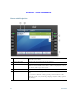
Phone Screen Navigation and Item Selection
7
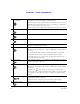
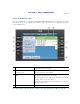
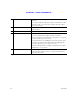
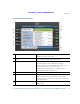
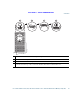
Nonprimary line labels Displays the nonprimary line phone information.
8
All Calls button label Displays if the All Calls feature is enabled. Pressing this
label or corresponding button displays all calls on all lines.
Calls are displayed on the right side of the phone screen
from the oldest (at the top) to the newest.
Pressing the button once highlights (selects) the current call
or first call on the list. Pressing the button twice highlights
the header line, allowing you to make a new call.
Using the All Calls feature is highly recommended if you
have multiple lines on your phone.
9
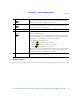
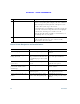
Primary line label Displays the primary line phone information.
In this example, the blue icon (for Connected Call)
indicates this is the selected line.
Task Action Example
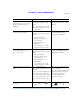
Scroll to highlight an item. Press the Navigation pad. Highlight a call from the missed
call list.
Scroll to a different page (of a
listing) by touch.
Quickly press and drag your
finger on the list in the direction
you wish the page to move (flick
scroll).
Flick scroll to display the next
page of the placed calls list.
Select a touch-sensitive item
(press once).
Press the item on the phone
screen.
Press the Preferences
application to open it.
Select a touch-sensitive item to
perform the default action
(double-tap).
Double-tap an item in a listing. Double-tap a call history item to
dial the number.
Select an item by number. Press the corresponding number
on the keypad.
Press 2 to select the second item
in the Applications menu.
Select an item using the Select
button.
Press the Select button (at the
center of the Navigation pad).
Highlight the Preferences
application and press the Select
button.