
Manual
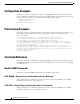
Table Of Contents
- Support for QSIG Over BRI and Q.931 Over BRI Backhaul
- Feature Overview
- Supported Platforms
- Supported Standards, MIBs, and RFCs
- Prerequisites for Using This Feature
- Configuration Tasks
- Provisioning Tasks
- Monitoring and Maintaining the Feature
- Configuration Examples
- Provisioning Examples
- Command Reference
- Reference Information
- Obtaining Documentation
- Documentation Feedback
- Obtaining Technical Assistance
- Obtaining Additional Publications and Information
- Glossary

Support for QSIG Over BRI and Q.931 Over BRI Backhaul
Monitoring and Maintaining the Feature
34
Cisco MGC Software Release 9.5(2)
For example, to set the service state of the IP link, iplink1, to IS, enter the following command:
set-iplnk:iplink1:IS
In another example, you would enter the following command to set the service state of an MGCP link
called mgcplnk1 to IS:
set-iplnk:mgcplnk1:IS::confirm
You can verify that the selected IP link is in the proper service state by performing the procedure in the
“Retrieving the Service State for IP Links” section on page 37.
Rebooting Software to Modify Configuration Parameters
Use the procedure below if you are having communication problems with your QSIG/Q.931 over BRI
backhaul data pathway. For more information on troubleshooting the rest of the Cisco MGC software,
refer to the Cisco Media Gateway Controller Software Release 9 Operations, Maintenance, and
Troubleshooting Guide.
Step 1 Log in to the standby Cisco MGC as root and change directories to the /opt/CiscoMGC/etc directory by
entering the following UNIX command:
cd /opt/CiscoMGC/etc
Step 2 Open the XECfgParm.dat using a text editor, such as vi.
Step 3 Search for the parameters associated with this feature and modify the values to address your problem.
Step 4 Save your changes and close the text editor.
Step 5 Manually stop the Cisco MGC software on the standby Cisco MGC by entering the following UNIX
command:
/etc/init.d/CiscoMGC stop
Step 6 Once the software shutdown is complete, manually start the Cisco MGC software on the standby
Cisco MGC by entering the following command:
/etc/init.d/CiscoMGC start
Step 7 Log in to the active Cisco MGC, start an MML session, and enter the following command:
mml>sw-over::confirm
Site alarms are automatically set until the out-of-service (OOS) Cisco MGC host is returned to an
in-service (IS) state.
Step 8 Repeat steps 2 through 7 for the newly standby Cisco MGC host.
Monitoring and Maintaining the Feature
The following sections contain the procedures required for proper monitoring and maintenance of this
feature:
• Managing Signaling Channels, page 35
For more information on operational tasks for the rest of the Cisco MGC software, refer to the Cisco
Media Gateway Controller Software Release 9 Operations, Maintenance, and Troubleshooting Guide.