
User Manual
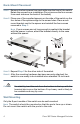
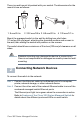
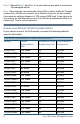
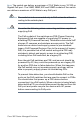
Table Of Contents
- Mounting the Cisco Switch
- Connecting Network Devices
- Configuring the Cisco 300 Series Managed Switch
- Features of the Cisco 300 Series Managed Switch
- Returning the Device to the Factory Default Settings
- Where to Go From Here
- Montaje del switch de Cisco
- Conexión de los dispositivos de red
- Configuración del Cisco 300 Series Managed Switch
- Características del switch administrado Cisco serie 300
- Cómo restablecer la configuración predeterminada de fábrica del dispositivo
- Cómo seguir
- Montage du commutateur Cisco
- Connexion des périphériques réseau
- Configuration du Commutateur administrable Cisco
- Fonctionnalités du commutateur administrable Cisco série 300
- Restauration de la configuration d'origine de l'appareil
- Pour en savoir plus
4 Cisco 300 Series Managed Switches
Rack-Mount Placement
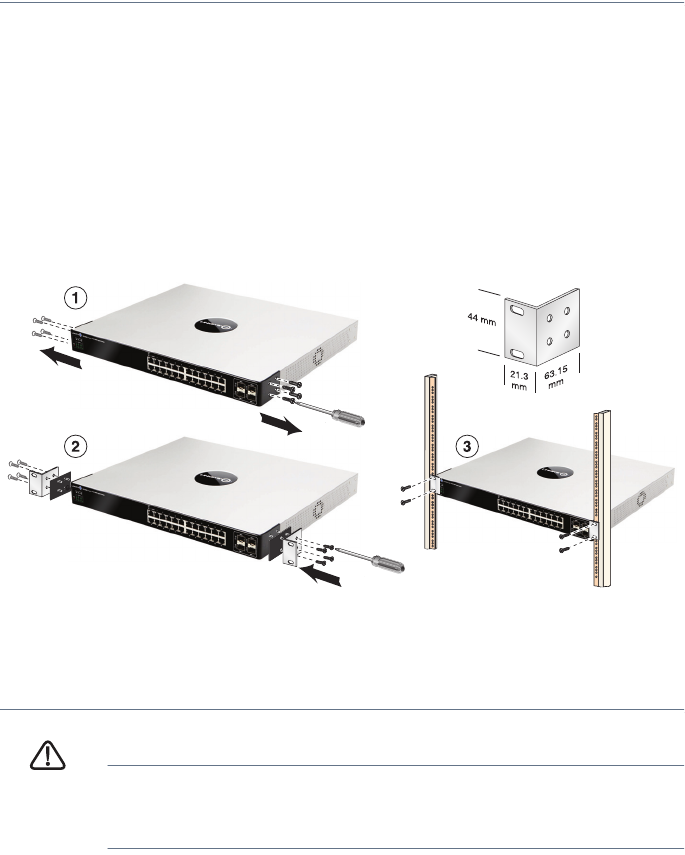
STEP 1 Remove the four screws from each side near the front of the switch.
Retain the screws for re-installation. (Do not remove the four screws
from each side near the back of the switch.)
STEP 2 Place one of the supplied spacers on the side of the switch so the
four holes of the spacers align to the screw holes. Place a rack
mount bracket next to the spacer and reinstall the four screws
removed in Step 1.
NOTE If your screws are not long enough to reattach the bracket
with the spacer in place, attach the bracket directly to the case
without the spacer.
STEP 3 Repeat Step 2 for the other side of the switch.
STEP 4 After the mounting hardware has been securely attached, the
switch is now ready to be installed into a standard 19-inch rack.
CAUTION For stability, load the rack from the bottom to the top, with the
heaviest devices on the bottom. A top-heavy rack is likely to
be unstable and may tip over.
Wall Mounting
Only the 8-port models of the switch can be wall-mounted.
NOTE The switch should be mounted so that the ports face up or down.
Do not mount the switch with the ports to the side.
181185