
Installation Guide
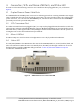
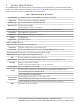
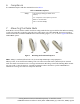
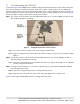
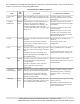
Table Of Contents
- 1. About this Manual
- 2. Product Overview
- 3. Radio Node Model
- 4. Connectors, SFP+ and Micro-USB Ports, and Status LED
- 5. System Specifications
- 6. Compliance
- 7. Mounting the Radio Node
- Always consult and follow local codes for mounting and wiring Corning equipment.
- 7.1 Flush Mounting the SCRN-510
- The security screws should not need to be adjusted but if they do, loosen them slightly to be able to slide the ceiling-mount bracket on and off.
- The shoulder screws should not need to be adjusted but if they do, loosen them slightly to be able to slide the ceiling-mount bracket on and off.
- Corning recommends that you use a customer-supplied projector mount when hanging the SCRN-510 from a dropped T-bar ceiling.
- 7.2 Downtilt Mounting the SCRN-510
- 8. Cabling Guidelines
- 9. Completing the Installation
- 10. Detaching the Radio Node from the Mounting Brackets
- 11. Radio Node LED Boot Sequence
- 12. Radio Node LED Management
- 13. Corning Documentation Set

Corning Restricted and Confidential Proprietary - Controlled content
SCRN-510 Hardware Installation Guide | DOC-SCRN-510-HIG_i4 | 16 October, 2020 | Page 16
12. Radio Node LED Management
The LED display is active by default, but can be deactivated in light-sensitive environments as needed. Even
when the display is disabled, the LED will be lighted during the following conditions:
• while the radio node is booting
• if the radio node or cell is in fault state
• if there is an active emergency call
• if the locate radio node feature is active
Table 5 shows the default LED behavior of the radio node:
12.1 Disabling the LED display
Step 1 From the CLI Configuration Mode, issue the set System RadioNode LED DefaultMode Dark
command to disable the LED display:
%set System RadioNode LED DefaultMode Dark
Step 2 Issue the show System RadioNode LED command to verify the configuration:
%show System RadioNode LED
DefaultMode Dark;
12.2 Re-Enabling the LED Display
Step 1 From the Configuration Mode, issue the set System RadioNode LED DefaultMode Standard
command to re-enable the LED display:
%set System RadioNode LED DefaultMode Standard
Step 2 Issue the show System RadioNode LED command to verify the configuration:
%show System RadioNode LED
DefaultMode Standard;
Table 5 Radio Node LED Behavior
LED Status Flash Rate
White: slow flashing Software initialization Approximately ½ second on, 1½ sec. off
Green: slow flashing The radio node or radio is administratively
disabled
Approximately ½ second on, 1½ sec. off
Green: fast flashing Booting Approximately 1.4 second on/off cycle
Green: solid Operational
Red: solid Fault
Blue: fast flashing Locate radio node enabled (Note) Approximately 1 second on/off cycle
Blue: solid Follow IMSI enabled
Off Powered off or LED disabled
Note: Refer to the Corning OS (SCOS) Administrator Guide for information about the locate radio node and follow
IMSI features.