
User Manual Part 2


CY8CKIT-042-BLE Bluetooth® Low Energy (BLE) Pioneer Kit Guide, Doc. # 001-93731 Rev. *A 162
Advanced Topics
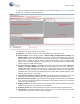
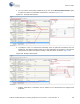
4. When the dongle is selected and connected to, the main window shown in Figure 6-62 opens up.
Figure 6-62. CySmart PC Tool Main Window
The important parts of this window are as follows:
■ Menu bar: This contains options to exit or find help about the CySmart PC tool.
■ Dongle settings: These settings comprise of Select Dongle, Configure Master Settings, and
Manage PSMs. Select the dongle allows to connect to a dongle that is listed by the system. If a
different dongle needs to be connected, then this option can be used. Configure Master Settings
option allows to modify the various settings that the dongle requires to act as a BLE Central
device such as connection parameters, scan parameters, or security parameters. Manage PSMs
allows to register for PSM or modify them.
■ Discovered devices options: The Master tab provides three options by default: Start Scan,
Connect, and Add to Whitelist. The Start Scan button allows the tool to start scanning for
available BLE peripheral devices and list them in the Discovered Devices window. This option
also allows to stop an ongoing scan. The Connect option allows to connect to a particular BLE
peripheral device that is listed in the Discovered Device window. Add to Whitelist allows to add a
selected device address to the whitelist.
■ Advertisement Data/Scan response data tabs: These tabs provide the description of the data
received in the advertisement packet and scan response packet from the selected device.
■ Discovered Devices window: This window lists all the peripheral devices found after starting a
scan. Selecting any device populates the information on advertisement data and scan response
data on the right side window.
■ Whitelist window: This window lists the devices that have been added as whitelist and provides
options to add, remove, or clear devices from the whitelist.
■ Raw Data window: This window displays the raw data (in hexadecimal) of the field selected.
■ Log window: This window displays all the activities that occur on the dongle and the data
communicated. This feature is also useful for debugging.