
User`s guide


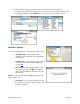

4. The Results screen appears with details about your
selection. The screen shows: a) the name of the business,
b) the distance from the search point, c) the street address,
d) the phone number (if available), and e) user-submitted
ratings for the business.
5. Click the trackball to expose the menu and choose from the
following options:
• Drive To – Get driving directions (this option will call up
the Going To confirmation pop-up).
• Call – Call the location (option only available if there is
a phone number shown on the Details screen). See
“Making a Phone Call” on Page
52 for more details
about this feature.
NOTE: When the call ends, you will be returned to the
Details screen. The calling option will not be available if
you are already on another call.
• Map It – View a map of the area surrounding the business address (See “Map Results” on page
35).
• View Reviews – Read reviews others have written about the business (see below).
• Rate This – Submit your own rating for the business (see below).
• Save to Favorites – Save the location to your Favorites.
NOTE: If a location is already part of your Favorites, you will not see the “Save to Favorites” option.
© TELENAV, INC. 2003-2009 PAGE 33 OF 57