
Users Guide



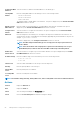

NOTE: During deployment of an MX7000 chassis template:
• The target device can only be the lead MX7000 chassis.
• If an MX7000 chassis is removed from group, it has to be rediscovered in OpenManage Enterprise.
• Users on the MX7000 chassis are replaced by the users who are configured in the template.
• Imported Active Directory settings are replaced with the values in chassis profile.
1. From the list of templates on the Configuration > Deploy page, select the check box corresponding to the template you want to
deploy, and then click Deploy Template.
2. In the Deploy Template: <template_name> dialog box, under Target:
a) Click Select, and then select device(s) in the Job Target dialog box. See Selecting target devices and device groups.
b) During deployment of the device template, the configuration changes might require a forceful reboot of the server. If you do not
wish to reboot the server, select the Do not forcefully reboot the host OS option.
A graceful reboot of the server is attempted when the Do not forcefully reboot the host OS option is selected. If the reboot
fails, you must rerun the template deployment task.
c) Click Next.
3. If the target device is a server, in the Boot to Network ISO section:
a) Select the Boot to Network ISO check box.
b) Select either CIFS or NFS as the share type, and then enter information in the fields such as ISO image file path and share
location where the ISO image file is stored.
c) Click Next.
4. In the Schedule section, run the job immediately or schedule for a later time. See Schedule job field definitions.
5. Click Finish. Review the Warning message and click YES.
A Device Configuration job is created under Jobs. See Using jobs for device control.
Clone templates
1. From the OpenManage Enterprise menu, under Configuration, click Deploy.
A list of available templates is displayed.
2. Select the check box corresponding to the template you want to clone.
3. Click Clone.
4. Enter the name of new template, and then click Finish.
The cloned template is created and displayed in the list of templates.
Manage identity pools—Stateless deployment
The I/O interfaces of a server, such as NICs or HBAs, have unique identity attributes that are assigned by the manufacturer of the
interfaces. These unique identity attributes are collectively known as the I/O identity of a server. The I/O identities uniquely identify a
server on a network and also determine how the server communicates with a network resource using a specific protocol. Using
OpenManage Enterprise, you can automatically generate and assign virtual identity attributes to the I/O interfaces of a server.
Servers deployed by using a device configuration template that contains virtual I/O identities are known as stateless. Stateless
deployments enable you to create a server environment that is dynamic and flexible. For example, deploying a server with virtual I/O
identities in a boot-from-SAN environment enables you to quickly do the following:
• Replace a failing or failed server by moving the I/O identity of the server to another spare server.
• Deploy additional servers to increase the computing capability during high workload.
The Identity Pools tab allows you to create, edit, delete, or export virtual I/O pools.
Overview of stateless deployment
To deploy a device configuration template with virtual identity attributes on target devices, do the following:
1. Create a device template—Click Create Template task under the Deploy tab to create a device template. You can select to
create the template from either a configuration file or a reference device.
2. Create an identity pool—Click the Create task under the Identity Pools tab to create a pool of one or more virtual identity types.
Manage device configuration templates
55