
Users Guide


Related tasks
Check and update the version of the OpenManage Enterprise and the available extensions
Update from an internal network share
You must set up a local share and manually download the update package when you are not automatically connected to Dell.com. An audit
log is created after every manual attempt to find an update.
NOTE: Before you begin the update, ensure to take a VM snapshot of the console as a backup in case something
unexpected occurs. (Allocate more downtime for this, if necessary).
NOTE: A direct update from the OpenManage Enterprise—Tech Release version to the 3.2 version is not supported.
TechRelease versions should be first upgraded to OpenManage Enterprise version 3.0.
NOTE: Updating a previous OpenManage Enterprise version 3.0 to 3.2 through a shared Network File Share (NFS) is not
supported. However, you can upgrade the appliance from the 3.1 version to 3.2 version through the shared NFS.
You can update by selecting the Automatic and Online options, or by using HTTP and HTTPS methods. You must ensure that the
security certificates are signed by a trusted third-party certificate authority when using the HTTPS method of update.
To update the OpenManage Enterprise:
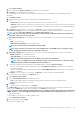
1. Download the applicable files from https://downloads.dell.com and save on a network share preserving the same folder structure that
can be accessed by the console.
2. Select Manual and Offline.
3. Enter the local path information where the downloaded files are saved, and then click Check Now. Example paths: nfs://<IP
Address>/<Folder_Name>, http://<IP Address>/<Folder_Name>, https://<IP Address>/<Folder_Name>.
The available update version with a brief description of the new features are displayed.
4. To validate a connection to the catalog click Test now. If the connection to the catalog is established, a Connection Successful
message is displayed. If connection to the share address or the catalog file path is not established, Connection to path failed
error message is displayed. This step is an optional.
5. Click Update Now, and perform an update.
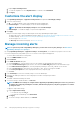
Log in after the update and confirm that the product works as expected. Check the audit log for any warnings or errors that are related to
the update. If any errors, export the audit log and save for tech support.
NOTE: After the OpenManage Enterprise version is successfully updated, clear the browser cache.
NOTE: After the OpenManage Enterprise version is successfully updated, the status of the associated jobs on the Job
Details page is displayed as Completed
NOTE: Currently, an audit log is not created after the OpenManage Enterprise version update process is successful or
unsuccessful.
Related tasks
Check and update the version of the OpenManage Enterprise and the available extensions
Install an Extension
Install an extension based on your requirement to enhance the functionality of OpenManage Enterprise.
• Ensure that the connectivity to repository is successful.
• For online, download.dell.com portal.
• For offline, server is configured with the required extension catalog and extension installation files.
NOTE: Installing an extension on OpenManage Enterprise restarts the appliance services.
To install an extension perform the following steps:
1. Click Application Settings > Console and Extensions
The Console and Extensions page is displayed
2. In Extensions section, against the extension you like to install, click More Actions > Install
The Install Extension window is displayed.
Managing OpenManage Enterprise appliance settings
125