
Users Guide



Minimum system requirements for deploying
OpenManange Enterprise–Tech Release
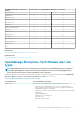
Table 4. Minimum requirements
Particulars Minimum Requirement
Hypervisors
VMware vSphere, and HyperV
Network Available virtual NIC which has access to the management
networks of all the devices to be managed from OpenManage
Enterprise–Tech Release.
Web browser • Internet Explorer (64-bit) 11 and later
• Mozilla Firefox 52 and later
• Google Chrome 58 and later
User interface HTML 5, JS based
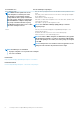
NOTE: For the latest update about the minimum requirements for OpenManage Enterprise–Tech Release, see the
Dell
EMC OpenManage Enteprise–Tech Release Support Matrix
on the support site.
Deploying OpenManage Enterprise–Tech Release
on VMware vSphere
NOTE:
To perform any tasks on OpenManage Enterprise–Tech Release, you must have necessary user privileges. See
Role-based OpenManage Enterprise–Tech Release user privileges.
1. Extract the .zip file to a location accessible by VMware vSphere Client. It is recommended to use a local drive or CD/DVD, because
installing from a network location can take up to 30 minutes.
2. In vSphere Client, select File > Deploy OVF Template. The Deploy OVF Template wizard is displayed.
3. On the Source page, click Browse, and then select the OVF package. Click Next.
4. On the OVF Template Details page, review the information that is displayed. Click Next.
5. On the End User License Agreement page, read the license agreement and click Accept. To continue, click Next.
6. On the Name and Location page, enter a name with up to 80 characters, and then select an inventory location where the template
will be stored. Click Next.
7. Depending on the vCenter configuration, one of the following options is displayed:
• If resource pools are configured — On the Resource Pool page, select the pool of virtual servers to deploy the appliance VM.
• If resource pools are NOT configured — On the Hosts/Clusters page, select the host or cluster on which you want to deploy
the appliance VM.
8. If there are more than one datastores available on the host, the Datastore page displays such datastores. Select the location to store
virtual machine (VM) files, and then click Next.
9. On the Disk Format page, select one of the following options:
• To allocate storage space to VMs, as required, click Thin Provision.
• To pre-allocate physical storage space to VMs at the time a drive is created, click Thick provision.
10. On the Ready to Complete page, review the options you selected on previous pages and click Finish to run the deployment job. A
completion status window displays where you can track job progress.
Deploying OpenManage Enterprise–Tech Release
on Hyper-V host
1. Open Hyper-V Manager in the Windows Server 2008 R2 and later versions. The Windows 2012 host should be displayed under Hyper-
V Manager.
10
Deploying and managing OpenManage Enterprise–Tech Release