
Users Guide




Topics:
• OpenManage Enterprise—Server Configuration Management License
OpenManage Enterprise—Server Configuration
Management License
NOTE: Installing and using OpenManage Enterprise–Tech Release does not require the
OpenManage Enterprise —
Server Configuration Management
license. Only the server configuration management feature requires that the
OpenManage Enterprise — Server Configuration Management
license is installed on target servers. The
OpenManage
Enterprise — Server Configuration Management
and
OpenManage Essentials
licenses are required only for deploying
device configurations and verifying configuration compliance on servers. This license is not required for creating device
configuration template from a server.
The OpenManage Enterprise — Server Configuration Management license enables you to deploy a device configuration and verify device
configuration compliance on licensed servers. The license is a perpetual license that is valid for the life of a server, and can be bound to the
Service Tag of only one server at a time. OpenManage Enterprise–Tech Release provides a built-in report to view the list of devices and
their licenses. Click OpenManage Enterprise > Monitor > Reports > License Report. Click Run. See Running reports.
NOTE: Enabling the server configuration management feature in OpenManage Enterprise–Tech Release does not
require any separate license. If the
OpenManage Enterprise — Server Configuration Management
license is installed on
a target server, you can use the server configuration management feature on that server.
Licensable Servers
You can deploy the OpenManage Enterprise — Server Configuration Management license on the following PowerEdge servers:
• 13th generation (13G) servers having the iDRAC8 2.50.50.50 or later firmware versions. 13G iDRAC versions are backward compatible
to support the iDRAC7 versions (12G) also.
• 14th generation (14G) servers having the iDRAC9 3.10.10.10 or later firmware versions.
Purchasing License
You can purchase the OpenManage Enterprise — Server Configuration Management license when you purchase a server or by
contacting your Sales Representative. You can download the purchased license from the Software License Management Portal at
Dell.com/support/retail/lkm.
Verifying License Information
OpenManage Enterprise–Tech Release provides a built-in report to view the list of devices monitored by OpenManage Enterprise–Tech
Release, and their licenses. Click OpenManage Enterprise > Monitor > Reports > License Report. Click Run. See Running reports.
You can verify if the OpenManage Enterprise — Server Configuration Management license is installed on a server by:
• On all pages of OpenManage Enterprise–Tech Release, in the upper-right corner, click the i symbol, and then click Licenses.
• In the Licenses dialog box, read through the message and click appropriate links to view and download OpenManage Enterprise–Tech
Release related open-source files, or other open-source licenses.
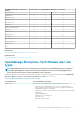
License-based features in OpenManage Enterprise–Tech
Release
To view the latest version of the installed OpenManage Enterprise–Tech Release appliance:
• Click the i symbol in the upper-right corner commonly displayed on all the OpenManage Enterprise–Tech Release pages.
• Click Application Settings > Update Console.
4
About OpenManage Enterprise–Tech Release