
User Manual Chapter 2






2-3
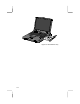
Using the Touchpad
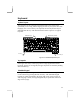
The touch pad works like a standard computer mouser. Simply move your
fingertip over the touch pad to control the position of the cursor.
Figure 2-2: Using the Touchpad
Touchpad Buttons
Two buttons are located below the touchpad. The button on the left acts
exactly like the left button on a mouse. You can click it once to select an icon,
object, or file, and click or double-click to execute an action on a selected
icon, object, or file.
The button on the right acts exactly like the right button on a mouse. In the
Windows environment, a right click usually displays a pull-down properties
menu for whatever icon, object, or file is selected.
Tapping the Touchpad Surface
You can operate most of the touchpad functions with a single fingertip. When
you need to execute a left button mouse click, tap gently on the touchpad
surface with your fingertip. Tap twice quite rapidly to execute a double click.
For drag and drop operations, tap twice, but keep your fingertip in contact with
the touchpad surface after the second tap, you can then drag objects around the
screen. When your fingertip breaks contact with the touchpad surface, the
object is dropped.