
User manual
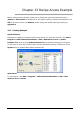

Table Of Contents
- DOP eServer User Manual-cover.pdf
- DELTA_IA-HMI_DOP-eServer_UM_EN_20140707
- Table of Contents
- Publication History
- Chapter 1 Introduction
- Chapter 2 Software Installation
- Chapter 3 Before using eServer
- Chapter 4 Excel Sampling Setting
- Chapter 5 Writing Data in Microsoft Excel
- Chapter 6 ODBC Sampling Setting
- Chapter 7 Writing Data in Microsoft Access 2003 at XP Operating System
- Chapter 8 Writing Data in Microsoft Access 2007 at Windows 7
- Chapter 9 Writing Data in MySQL
- Chapter 10 Writing Data in SQL Server 2005
- Chapter 11 Writing Data in Oracle
- Chapter 12 Recipe Access Setting
- Chapter 13 Recipe Access Example
- Appendix A Upload & Download via Ethernet
Revision March, 2014 13-1
Chapter 13 Recipe Access Example
Before creating testing example, make sure to change the upload and download option
(Options > Environment) on DOPSoft first. The default setting of upload and download is via
USB. If the users need to use Ethernet, please change the default setting by referring to
Appendix A.
13.1 Creating Example
Update Firmware
Remember to update the firmware before using eServer. To select this function, click Start >
Programs > Delta Industrial Automation > HMI > DOP eServer 1.00.xx > Update
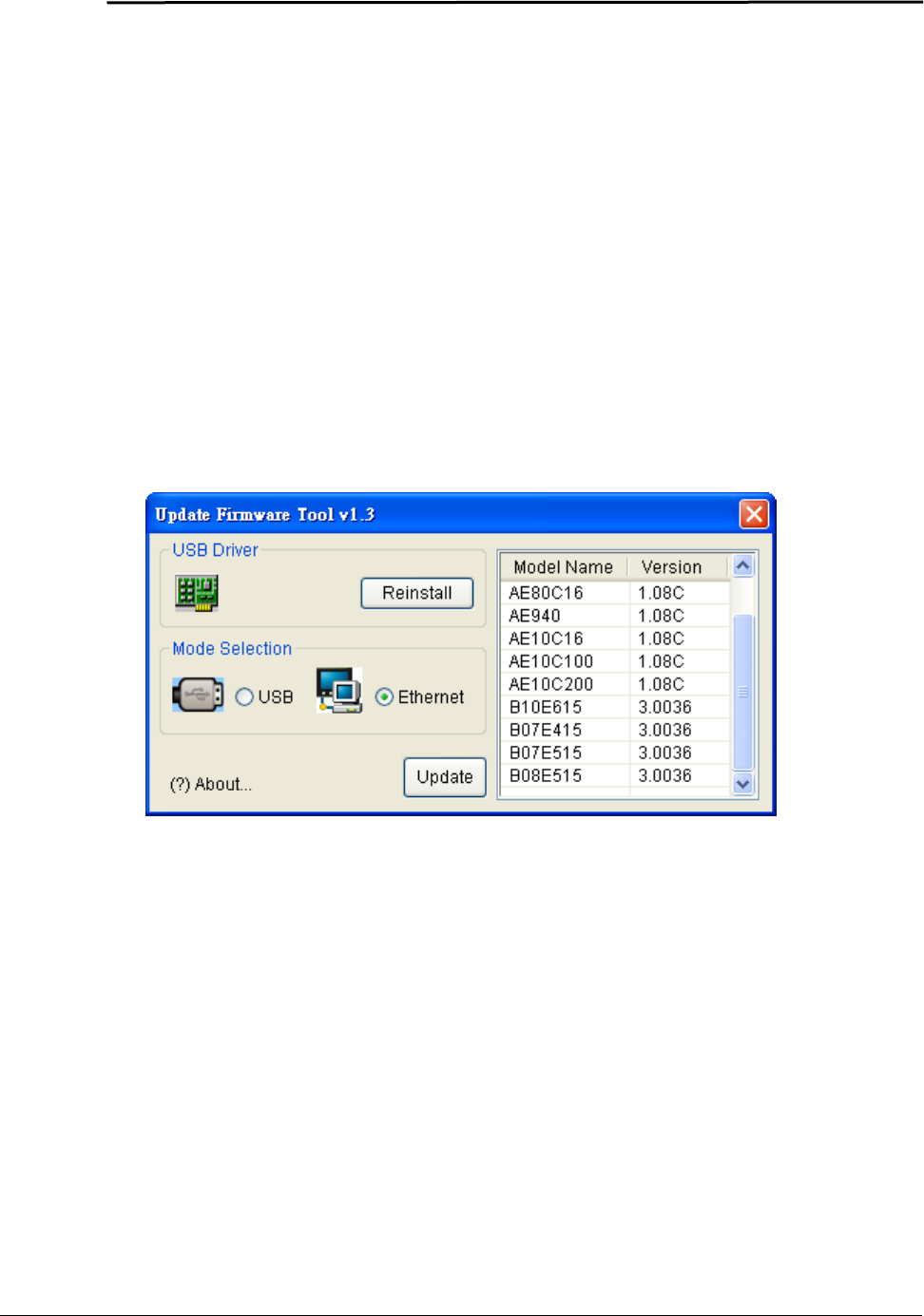
Firmware Tool. After clicking Update Firmware Tool, the following dialog box will appear
for the users to select the communication interface (the default setting is USB driver). Press
Update button to update HMI firmware automatically.
Start eServer
To start eServer, click Start > Programs > Delta Industrial Automation > HMI > DOP
eServer 1.00.xx > eServer.