
Operation Manual
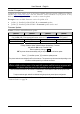
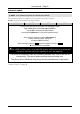
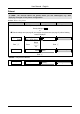
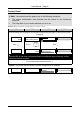
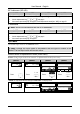
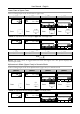
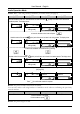
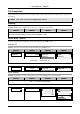
Table Of Contents
- Copyright
- Warranty
- Declaration of conformity
- Safety instructions
- Disposal of the product
- Hardware Components
- User Interfaces
- User and Administrator Mode
- Documentation
- Phone Installation
- Phone Initialization
- Registration
- Idle Screen
- Phone User Interface
- Web User Interface
- General Configuration Tasks
- Display Configuration Tasks
- Audio Configuration Tasks
- SIP Identity Configuration Tasks
- Function Key Configuration Tasks
- Maintenance Tasks
- Outgoing Calls
- Extension (SIP identity) for Outgoing Calls
- Making Calls
- Auto Completion (Number Guessing)
- Call Completion
- Call Termination
- Redial
- Call Indication
- Accepting Incoming Calls
- Call Waiting
- Denying Incoming Calls
- Denying Incoming Calls Automatically
- DND (Do Not Disturb) Mode
- Call Forwarding
- Audio Operation Modes
- Mute / Unmute
- Multiple Speaker Mode
- Hold and Resume
- Call Transfer
- Conference
- Call Recording
- Logoff All Users (Extensions/SIP Identities)
- Logon New User (Extension/SIP Identity)
- Access
- Access
- Availability
- Access
- Changing the Presence State
- Contact Presence
- Acoustical Indication
- Visual Indication
- Retrieve New Messages
- Busy Lamp Field (BLF) feature
- “Calls” List
- Call Pickup

User Manual - English
47
Version Comparison
Compare the major release level of the latest available firmware version published on Doro’s
website
http://www.doro.com/ with the firmware version installed on your phone. If they
differ you are strongly advised not to conduct a manual update!
Example: Latest available firmware version for ip830c is 7.1
• ip830c (1): Installed: ip830c-SIP 4.5 Æ use automatic update
• ip830c (2): Installed: ip830c-SIP 6.2.2 Æ manual update can be used
Firmware Update
Action: Conduct a manual firmware update
ip810c ip820c ip830c ip840c
Navigate to Doro’s firmware download website http://www.doro.com/
Copy the link (URL) of the appropriate firmware version X.Y.Z by right-clicking on the “File” Symbol
Version Type File Size
X.Y.Z applications
.bin
<File Size> MB
Access the phone’s web user interface
Setup Software Update Manual Software Update Setup Firmware
and paste the link into the “Firmware” field.
Start the update by clicking on Load
The phone reboots automatically and you are prompted to confirm the update.
Press to confirm or press to abort the update process.
The phone loads the new software from Doro’s web server. This process may take some time depending on the
<File Size> and the speed of your internet connection.
1 Warning: Any power interruption during the following process will most likely
lead to a flash memory error. As a result the system cannot boot up anymore and
the phone must be sent in for repairing at your own expense.
After successful download the old firmware is erased and the new firmware is written into the phone’s flash
memory.
The phone reboots again and will be initialized using the previously stored phone configuration.
Result: The firmware is updated. You can verify the successful update as described in chapter
“Version Check” on page 46.