
Technical data




43
IN1
IN4
IN7
IN10
IN3
IN6
IN9
IN12
IN2
IN5
IN8
IN11
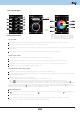
THE SCREENSHOTS
Device
Information
Circuit
temperature
adjustment
Decrease
brightness
Illumination
in color based
on RGB
Increase
brightness
Output ON/OFF
button
Illumination in
white
Settings
Button for moving between screens
EST3=> settings menu=>design selection=>2x2 - input IN1- IN4
EST3=> settings menu=>design selection=>2x3 - input IN1- IN6
EST3=> settings menu=>design selection=>3x3 - input IN1- IN9
EST3=> settings menu=>design selection=>3x4 - input IN1- IN12
Legend:
BUTTONS SCREEN
Programming iNELS system functions on each button on the screen units EST3 is the same as programming other digital inputs or events for input or button units.
Buttons can be confi gured as well as other inputs in the system, both for short and also long press (> 1.5 s).
Buttons (icons) on the screen can be used instead of control outputs for visualization of one of the digital outputs of the system iNELS. This is made possible by assigning button to
the desired output.
In doing so, the button (icons) on the screen EST3 will become signal lamps (illuminated button), showing the state of the associated output.
HEATING CONTROL SCREEN
On the temperature control screen, the temperature of the selected heating circuit can be corrected in the range of ± 5 ° C.
Based on the confi guration in the settings menu however, it is possible to directly enter the required absolute temperature value of the given heating circuit.
The virtual wheel can be used for temperature correction, where you can drag your fi nger across the screen to control the temperature by half a degree Celsius.
The temperature correction can also be used instead of the virtual wheel symbols "+ " and "- " .
RGB LAMP AND LIGHT SOURCE CONTROL SCREEN
The RGB light sources control screen contains controls for managing the desired color and brightness of the RGB light sources.
RGB control screen function is set up so that the colors R, G, B are bound together and simulate the signal level on analog inputs R, G, B and the resulting brightness of the lamp is
linked to a simulated analog input 0 to 100%.
The RGB control display is comprised of several elements and buttons.
- A long press (touch) on the ON/OFF controls the central setting of RGB components and lamp brightness - on/off
- Buttons
in the upper half of the screen are for setting the lamp brightness from 0-100% in 5% increments (see adjustable brightness indicator in %)
- Buttons
in the lower half of the screen are for setting the color comfort and accelerated lamp RGB control. The buttons have a lock function. When pressing
"white illumination“ button, the analog inputs are automatically set to the maximum value of individual color components, which appears as a resulting white light at the RGB
light source output when these components are mixed. Then simply adjust the brightness intensity at the output. When pressing (touching) the button
"RGB-based color
illumination“, the "white illumination“ , button
automatically unlocks, and the "RGB-based color illumination“ settings button locks..Now the values of analog inputs of individual
RGB color components are preset according to the set cursor in the color wheel of the RGB scale on the EST3.
ADDITIONAL INFORMATION:
Info
gives information on the device and fi rmware version. Clicking the icon brings you to the settings menu, used to edit the EST3. The icon returns to the buttons panel.
The system time is displayed in the upper right corner of the screen.
In the case of request for changing the original screen (panel) buttons, it is always necessary to perform RESET of the device before confi guration of icons (buttons).
All inputs and outputs on the EST3 unit can be freely programmed and parameterized using the IDM program.