
User manual

A7+InternetTablet–UserManualv1.5 Page5
2.6 Connecting an External Monitor
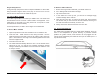
Even though the screen resolution of the Tablet is 1024x600, the Tablet
is capable of playing back true 1080p HD video through the HDMI output
to an external monitor.
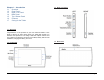
1. Locate the HDMI port on the left side of the Tablet (see “1.3 Right /
Left Panel”).
2. Plug one end of a standard full-size HDMI cable into the Tablet and
the other into the HDMI input port of the external monitor.
3. Note: The HDMI connection overrides the Tablet’s audio output, so
you will see picture on both the Tablet and external monitor, but you
will only hear audio on the external monitor. The Tablet’s speakers
and headphone jack will not produce sound when the HDMI cable is
plugged in.
2.7 Mouse/Finger Functions
The capacitive touch screen allows you to navigate the Tablet with your
fingers. The table to the right lists common movements and their
corresponding functions.
Mouse/Finger Functions:
Finger Function
Single-tap Click or single-tap to select or run an item.
Tap and hold Press and hold for more than 3 seconds to
display the Pop-up menu.
Drag Drag an item to move it.
Flick Flick the pen across the screen in a particular
direction to scroll up, down, left, or right.
2.8 The Software Keyboard
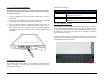
The Tablet has a software QWERTY keyboard for inputting text. Whether
you are surfing the web, writing an email, or using any other app, just tap
on any field requiring data entry and the keyboard will appear. Type in
the desired text, then tap the “Go” button at the top right or the bottom
right to complete your entry.
In situations where there are consecutive data fields, the “Go” button at
the top may “Next” instead and will take you from one field to the next
until all fields have been completed.