
User manual





A7+InternetTablet–UserManualv1.5 Page6
2.9 The Power Switch
The Power Switch is located on the left side
panel of the Tablet. It is used to power on/off
the Tablet.
Power Button behaviors
System
Status
Action Result
Power off
Long press
(2 seconds)
Turns on the power
Power on
Short press
Enters Suspense
Mode
Long press
(2 seconds)
Shows power menu
Suspend Press once
Resume from
Suspense Mode
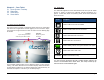
To unlock the Tablet
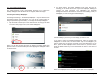
After pressing the power button to turn on the Tablet, move the lock as
indicated to enter the system. Just slide the lock up in the direction of the
arrow as pictured below.
2.10 Suspense Mode
To conserve battery power, your Tablet will automatically enter
Suspense Mode if there is no activity for a defined period of time (see 4.1
Display Options to see how to change Screen Timeout). Some users
prefer a very short timeout of one minute while others may prefer a long
timeout of 30 minutes or even never if they operate the Tablet on AC
power and are not concerned about battery life. The A7+ gives you
several options.
When the Tablet enters Suspense Mode (Screen Timeout), the screen
goes dark and the unit appears to be turned off except for the power light
which slowly flashes green.
Putting the Tablet into Suspense Mode
If you want to put the Tablet to “sleep” without waiting for the automatic
Screen Timeout, you can manually put the Tablet in Suspense Mode by
giving the power button a short press. The screen will immediately go
dark.
Waking the Tablet from Suspense Mode
Unlike a laptop or desktop computer, you cannot “wake up” the unit by
tapping the screen, moving a mouse or typing on the keyboard.
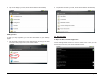
To reactivate the Tablet, give the power button a short press. The screen
will light up within 2-3 seconds. The Tablet will be locked, so you will
need to slide the green lock up as described in the left column of this
page. If your Tablet goes into Suspense Mode too quickly, you can
adjust the Screen Timeout as described in Chapter 4.1.
2.11 Rebooting the Tablet
In the event that the Tablet becomes unresponsive, it is possible to
reboot the unit. Locate the Reboot Key hole on the back of the Tablet
(see “1.4 Back Panel”) and insert a paper clip or other thin object into the
small hole. Press the button inside until you feel a click and the Tablet
screen goes black and initiates the bootup process.