
User manual





A7+InternetTablet–UserManualv1.5 Page7
Chapter 3 – Your Tablet
3.1 Home Screen / Desktop
3.2 Status Bar
3.3 Smart Keys
3.4 Smart Menu
3.1 Home Screen / Desktop
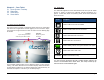
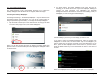
The Home Screen consists of 5 Desktop Pages that can be customized
with shortcuts for applications and web pages you use most often. Swipe
your finger left or right across the screen to scroll from one desktop page
to another.
The Scroll Bar indicates which of the 5 desktop screens you are currently
viewing. The Status Bar above the Scroll Bar displays status information
as described in Chapter 3.2. By default, tapping the Home Smart Key as
described in Chapter 3.3 will return you to Deskop Page 3.
3.2 Status Bar
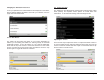
The Status Bar appears as a thin white band across the top of the Tablet
Screen. A variety of small icons indicates relevant information at a
glance: current time, alarm clock, battery status, Wi-Fi status, Bluetooth
Status and more.
Icons Description
Indicates a Micro SD Card is installed
Indicates a USB Flash Drive is connected
Indicates that Bluetooth is turned on
Indicates that Wi-Fi is turned on
Indicates battery status: more green denotes more power
Indicates that Alarm clock is set
7:10 PM
Indicates current time of day
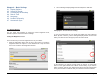
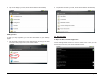
You can pull down the Status Bar like a window shade, making it full
screen to reveal details about certain items, then swipe it back up top
until it becomes a small white bar again.
Status Bar
Displays key status
information
Scroll Bar
Tap the left/right arrows to
scroll through the Main Toolbar.