
User manual





A7+InternetTablet–UserManualv1.5 Page14
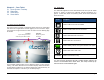
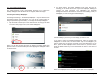
If you want to select a static background, choose Wallpapers from the
Select wallpaper from menu and you will see a variety of still images to
choose from. Move the scroll through the bar near the bottom until the
image you want is shown big at the top. Press the Set wallpaper button
at the bottom to make your selection.
Adding Shortcuts
To make it quicker to use the apps you like best, it is possible to add
shortcuts to the 5 desktop pages.
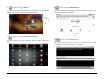
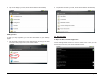
1. Go to the desktop page where you want to add the shortcut.
2. Tap this to display the Master List of Apps.
3. Locate the app you want to create a shortcut for, then push and
HOLD the icon until it “pushes through” to the desktop page.
Organizing and Removing Shortcuts
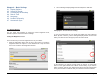
If you want to organize the shortcuts on a page, you can rearrange them
easily. Tap the icon you want to move, pressing with a long push until the
icon enlarges. Once it does, you can drag it to any available spot on the
page. Drop it where you want it.
The Smart Menu on the right is replaced with a trash can when you drag
shortcuts, so if you want to delete one, just drop it in the trash. When the
app and trash can turn red, just let go and it’s gone. There is no need to
empty the trash, as Android does not hold files there for later retrieval.
Adding Widgets
You can also add Widgets to your desktop pages:
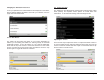
1. Tap and hold a blank spot on the Home Screen to bring up the Add
to Home screen popup menu, then select Widgets