
User manual





A7+InternetTablet–UserManualv1.5 Page19
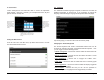
3. Draw your own personal unlock pattern. Do not tap the dots; you
must drag your finger from one to the next so that you are drawing
one long line that passes through at least 4 dots
.
4. If you are not happy with the pattern, tap Retry on the left and draw
again. If you like the pattern, tap Continue on the left.
5. Redraw your pattern, then tap Confirm on the left.
You can change your pattern any time you are logged in, but if you forget
your pattern, the only solution will be to do a factory data reset, erasing
all your data and settings. Draw something you will remember!
Setting a PIN
To create a PIN requirement:
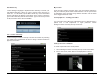
1. Launch Settings>Location & security>Set up screen lock>PIN.
2. Enter a PIN number with at least 4 numbers
, then tap OK at the
bottom.
3. Enter your PIN number again to confirm it, then tap OK.
Creating a Password
To create a Logon Password:
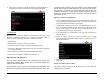
1. Launch Settings>Location & security>Set up screen lock>Password.
2. Enter a password with at least 4 characters, then tap OK.
3. Enter your password again to confirm it, then tap OK.
Visible Passwords
If you would like to see your passwords and PIN numbers on screen
when you are entering them, there is an option to enable Visible
Passwords.
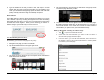
Launch Launch Settings>Location & security and tap the check box next
to Visible Passwords. A green check in the box means the feature is
enabled and you will be able to see your passwords. If the box is not
checked, password entry will appear as a series of dots to prevent others
nearby from seeing and possibly stealing your codes.