
User manual





A7+InternetTablet–UserManualv1.5 Page21
Chapter 5 – Making a Connection
5.1 Wi-Fi
5.2 Bluetooth
5.3 VPN
5.4 Airplane Mode
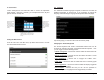
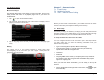
The Wireless & networks application makes the Internet connection for
your Tablet. It contains four modules: Wi-Fi, Bluetooth, VPN and Airplane
mode. All are turned off by default. To turn a function on, launch
Settings>Wireless & networks, then tap the check box to the right of the
desired function.
5.1 Wi-Fi
The Tablet comes equipped with a built-in 802.11b/g wireless receiver.
The advantages of a Wi-Fi network include advanced network security,
enhanced reliability, network flexibility, better performance and shared
broadband and internet access.
Note: the Tablet does not support 802.11n. If your Wi-Fi signal comes
from a “wireless N-only” router, the Tablet may perform poorly or may
have no Wi-Fi functionality at all.
Wireless Connection Settings
The internet is a gateway for knowledge, entertainment and business.
Practically every piece of information you want to know can be found
there. The Tablet features wireless connection for your internet needs.
Use Wi-Fi when you are in range of a hotspot.
Before you start the setup, contact your network administrator to get the
name of the network (SSID), and any relevant security information, such
as WEP or WAP keys, and the network password.
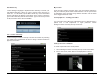
The easiest way to connect to a Wi-Fi network is to automatically scan
and connect to a nearby network.
To Automatically Scan and Connect to a Network
1. Launch Settings>Wireless & networks and tap Wi-Fi settings to open
the Wi-Fi settings menu.
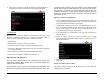
2. Tap Wi-Fi at the top to turn it on. The Tablet will begin an auto-scan
to determine available networks within range, listing them in order of
signal strength and showing security details for each network.
3. Select the network you wish to connect to.
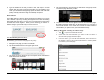
4. If the network has security, a popup window will appear. Tap the
data field to bring up the keyboard, enter the password, tap Done
and then tap Connect.