
User manual





A7+InternetTablet–UserManualv1.5 Page22
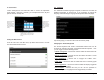
5. After a Wi-Fi connection is made, the Wireless signal will appear on
the Status Bar and the network status will indicate Connected.
5.2 Bluetooth
Bluetooth is a short-range wireless communications technology. With
Bluetooth capabilities, devices can exchange information within a
distance of about 10 meters. Bluetooth is commonly used to:
• Transfer files.
• Share Internet access with the other computer.
• Connect to Internet through a mobile phone modem function.
• Connect to a Bluetooth supported device such as a mouse, a keyboard
or a cordless earphone.
• Share audio input or output with the other Bluetooth device.
• Connected to the printer or modem via serial service.
Bluetooth Device Requirements
The A7+ Tablet officially supports only A2DP Bluetooth devices with
stereo audio capability. Mono devices such as cell phone speakers and
earpieces are not compatible.
Important Note: The A7+ does have limited Bluetooth compatibility with
certain Mac computers and other assorted peripheral devices, but it does
not support printers, scanners, bar code readers or most other peripheral
devices even though the Tablet will detect and “pair” with such devices.
The necessary “connection” can only be made with proper drivers. Until
hardware manufacturers of these devices create the necessary drivers to
support both Android and the Tegra 2 processor, these devices will not
successfully connect.
Opening the Bluetooth Application
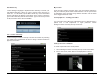
1. Launch Settings>Wireless & networks and tap Bluetooth settings to
open the Bluetooth settings menu. Note: You can only access this
menu if the Airplane mode box is not checked.
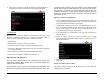
2. Tap Bluetooth at the top to turn it on. The Tablet will begin an auto-
scan to determine available devices within range, listing them at the
bottom of the screen. A scroll bar at the far right will allow you to
move down through a long list if necessary.
3. If the Tablet does not automatically scan, tap Scan for devices to
start the search.
4. Select the device you want to pair and connect with. A popup
window will appear: Bluetooth pairing request, you need to key in a
PIN to link the device.
5. When Bluetooth is turned on, the Bluetooth icon will appear on the
Status Bar.
Giving Your Tablet a Device Name
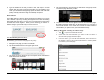
Tap Device name to bring up the keyboard so you can create the
equipment ID of your choice.