
User manual





A7+InternetTablet–UserManualv1.5 Page23
5.3 VPN
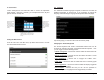
Launch Settings>Wireless & networks and tap VPN settings to set up
and manage Virtual Private Networks (VPN’s). Tap Add VPN to add a
PPTP, L2TP, L2TP/IPSec PSK or L2TP/IPSec CRT network.
5.4 Airplane Mode
Airplane mode ensures your safety when using the Tablet on an aircraft.
All connection applications that might interfere with aircraft operation are
automatically disabled. There are two ways to enable Airplane mode:
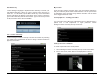
1. Launch Settings>Wireless & networks, then tap Airplane mode at the
top. A green check in the box confirms your selection.
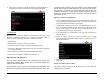
2. You can also put the Tablet in Airplane mode by holding the power
button for 2 seconds, as you would normally do to turn off the unit.
Instead of selecting Power off, select Airplane mode.
Chapter 6 – Browsing the Web
6.1 The Default Browser
6.2 Bookmarking Favorite Sites
6.3 Browser History
Use your Tablet to make internet connections and the web browser
opens the entire online world for you. To access the internet, your Tablet
must be setup properly (see Chapter 5 Making a Connection).
6.1 The Default Browser
Although there are several third party web browsing apps available like
Dolphin and Opera, the A7+ comes equipped with the Android default
browser and is ready to surf the web right out of the box.
Visiting a Website
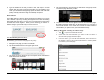
1. Establish a Wi-Fi connection (confirm that there is a Wi-Fi symbol on
the right side of the Status Bar).
2. Tap to open the Web Browser.
3. The browser will automatically open to you Home Page (Google.com
by default unless you change it).
4. Use the Google search engine to find your desired page, or type in
the URL address directly in the address bar. Often the address bar is
not visible unless you scroll up to the top of the page.