
User manual





A7+InternetTablet–UserManualv1.5 Page24
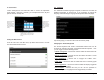
5. Type the address of the site you want to visit, then tap Go. It’s that
simple. With the Tegra 2 process and Flash 10.3 pre-installed, you’ll
reach your destination with lightning speed and watch web video with
quality normally reserved for high-end desktop computers.
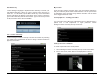
Pinch & Zoom
The Tablet features a Pinch & Zoom technology that allows you to zoom
into a website or photo by touching two fingers to the screen and sliding
them apart from each other. To zoom out, touch two fingers to the screen
and slide them closer together. When you are zooming, you will see +/-
buttons that give you another way to zoom in and out.
6.2 Bookmarking Favorite Sites
Bookmarking your favorite web pages is very easy:
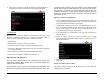
1. Navigate to the page you want to bookmark.
2. Tap the bookmark button in the upper right corner.
3. The page you are on will show up in the top left corner underneath a
white star and the word Add.
4. Tap the Add button, then edit the top data field in the popup screen
to name the page whatever you like.
5. Tap OK and the site will now appear in the list of bookmarked pages.
By tapping the Menu Smart Key on the black bezel, you can open a
menu at the bottom of the screen and choose List View instead of
Thumbnails if you prefer to see your bookmarks that way.
Editing a Bookmark & Setting Your Home Page
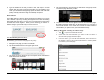
1. Tap to open the bookmark window.
2. Press and hold the bookmark you want to edit for about 2
seconds until a popup windows opens.
3. From this menu, you can edit the bookmark, add a shortcut to
the desktop, share it (via Facebook, Bluetooth or Twitter) delete
it or make it your home page.