
User manual





A7+InternetTablet–UserManualv1.5 Page29
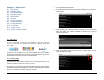
Chapter 8 – Applications
8.1 App Stores
8.2 Installing Apps
8.3 Uninstalling Apps
8.4 Managing Apps
8.5 Notifications
8.6 Camera
8.7 Sound Recorder
8.8 Contact Manager
8.9 OI File Manager
8.10 Calculator
8.11 Alarm Clock
8.12 Aldiko e-Book Reader
8.1 App Stores
The A7+ comes with 3 app stores pre-installed to give you maximum
access to thousands of Android apps worldwide: Apppoke, Getjar and
Soc.io Mall.
Google has not certified the A7+ for Android Market due to the Tablet’s
large screen combined with its Android 2.2 operating system. At this time
the Tablet does not have access to Android Market.
8.2 Installing Apps
Applications can be installed 3 different ways: downloaded directly, side-
loaded via USB or loaded from a Micro SD card.
Important note: Android 2.2 has a default setting that only allows apps to
be installed through Android Market. In order to install apps from outside
sources, you will have to enable Unknown Sources:
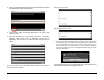
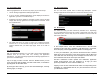
1. Launch Settings>Applications.
2. Tap Unknown sources at the top to allow installation of non-Android
Market apps.
3. This will bring up a warning screen informing you that third party
apps may make your Tablet vulnerable to attack. This screen is
normal, so click OK.
4. Once the Unknown sources check box has a green check, you are
ready to load up on apps.