
User manual





A7+InternetTablet–UserManualv1.5 Page30
Downloading Applications Directly to the Tablet
You can access thousands of apps at Stores like Appoke, Getjar, Soc.io
Mall and other third party sites.
1. Use the web browser to visit the download location, then find the
appropriate download link. In the upper left corner of the Status Bar
you will see an animated down arrow icon indicating the download is
in progress. When the arrow stops its animation and becomes solid
white, the download is complete.
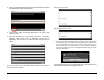
2. Slide the Status Bar down to reveal the brightness, volume and
Notifications. You will see a notification for the application you have
just downloaded. Note: All Android apps have an APK file type.
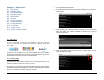
3. Under Notification, tap the APK file you just downloaded to begin the
installation process. Note: If you clear the notifications before
installing the app, you can use the OI File Manager to locate the file
in the sdcard/download folder (see Chapter 8.10).
4. After you tap the APK file, the Application Manager will ask if you
want to Install the app or Cancel. Choose Install.
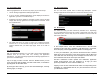
5. After installing the app, you will get a confirmation screen that the
Application was installed. Tap the Open button at the bottom if you
want to launch the app or tap Done if you do not.
6. A shortcut icon for the new app will automatically be added to the
main apps page.
Side-Loading Applications from a USB Flash Drive
You can also use your PC or Mac to download Android apps:
1. Download the APK file to your computer, then copy it to a USB flash
drive. APK files are generally fairly small so there should not be a
space issue.
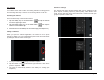
2. Insert the flash drive into the side port of the A7+ tablet.
3. Launch the OI File Manager application (see Chapter 8.10).
4. Open the sdcard/usb0-disk0 folder and tap on the application you
wish to install. Complete the installation process the same as direct
download.
Loading Applications from a Micro SD Card
1. Download the APK file to your computer, then copy it to a Micro SD
card.
2. Insert the Micro SD card into the top slot of the A7+ tablet.
3. Launch the OI File Manager application (see Chapter 8.10).
4. Open the sdcard-disk0 folder and tap on the application you wish to
install. Complete the installation process the same as direct
download.