
User manual





A7+InternetTablet–UserManualv1.5 Page31
8.3 Uninstalling Apps
Removing applications can be done very simply in just a few steps:
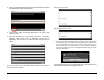
1. Launch Settings>Applications>Manage applications.
2. A list of currently installed applications will be displayed. Select the
application you wish to uninstall and tap it.
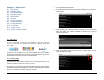
3. Application info will be displayed, including program version and disk
usage. Near the top right there is a large button for Uninstall. Touch
the Uninstall button.
4. The tablet will ask if you want to confirm the uninstall command.
Choose OK. In a few seconds the app will be removed and the
shortcut deleted from your main apps page. There is no trash to
empty.
8.4 Managing Apps
With the Application Manager you can easily check several application
statistics such as file size, data use, caching and application
permissions. Just launch Settings>Applications>Manage applications to
open a list of installed apps.
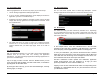
Tap on an app you want to review. From the detailed screen you can
Force stop an app that has failed, clear data it has stored, or uninstall the
app altogether as described above.
By clicking the tabs at the top, you can view Downloaded Apps, Currently
Running Apps, or All Apps.
8.5 Developing Apps
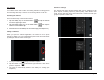
The A7+ has some system tools to assist app developers. Launch
Settings>Applications>Development to access the following screen:
8.6 Notifications
The Tablet will notify you when certain key activities occur. Depending
on your preferences, there may be a chime or other audio cue when new
notifications post, or there may only be the addition of icons on the left
side of the Status Bar.
In the example above, there are notifications that a file has been
uploaded, a Micro SD card is installed, a USB flash drive is connected,
and a third party camera application is enabled in the background.
To view your notifications, just pull down the Status Bar like a window
shade and scroll to the bottom. Some will be Ongoing, like the Micro SD
card, USB drive and camera app in this example, but some will be one-
time notifications that can be acted upon and cleared.
One-time notifications include uploads and downloads, application
update announcements from app developers if an app you have
previously installed has a new version available, etc.
Tapping on the one-time notifications will initiate a corresponding action
(installation of a downloaded APK file, etc.) and will clear the item from
your Notification screen.