
User manual





A7+InternetTablet–UserManualv1.5 Page32
8.7 Camera
Your Tablet comes with a built-in front-facing webcam for taking photos
and recording video clips. There is no rear-facing camera on the A7+.
Activating the Camera
There are three ways to activate the camera:
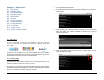
1. Tap the Gallery key on the Smart Menu then tap the camera
icon in the upper right corner.
2. Tap the Master Apps key on the Smart Menu then tap the
shortcut for the Camera app.
3. Add a shortcut to the desktop for the Camera app (see Chapter 4.3)
Taking a Still Photo
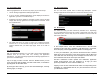
When you open the Camera application, the camera is set to photo
capture by default. You can toggle between photo mode and video mode
by sliding the selector switch on the right.
1. Focus your camera on the image you want to capture.
2. Tap the shutter icon at the bottom right and hear a click as the
picture is captured.
3. The photo is automatically added to the Gallery for viewing (see
Chapter 9).
Still Photo Settings
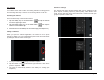
The Camera app offers several settings that can be adjusted for still
photo capture, including exposure, picture quality, white balance and
zoom. On the right edge of the picture area are 3 small icons that open
groups of options to select from: