
User manual





A7+InternetTablet–UserManualv1.5 Page34
8.8 Sound Recorder
The Sound Recorder allows you to record your voice.
Activating the Sound Recorder
There are two ways to activate the sound recorder:
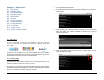
1. Tap the Master Apps key on the Smart Menu then tap the
shortcut for the Sound Recorder app.
2. Add a shortcut to the desktop for the Sound Recorder app (see
Chapter 4.3)
Recording Audio
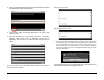
1. Tap ● to start recording.
2. A large running clock in the upper right corner lets you know how
long you have been recording.
3. Tap
■ to stop recording.
To Save the Recording
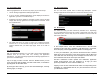
1. After tapping the Stop button, a popup menu will give you the option
to save or delete the recording
2. You can listen to the recording by tapping the Play ► button in order
to determine if you want to save or delete it.
3. Select Use this recording to save the recording or Discard to delete
it.
To Play Back a Recording
Use the Music Player app for playback of recorded voice clips (see
Chapter 10).
8.9 Contact Manager
The Contact Manager allows you to keep a virtual rolodex with you
wherever you go.
Activating the Contacts App
1. Tap the Master Apps key on the Smart Menu then tap the
shortcut for the Contacts app.
2. Add a shortcut to the desktop for the Contacts app (see Chapter 4.3)
Adding Contacts
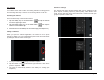
When you first launch the Contacts app, there are no contacts to display.
Tap the Menu Smart Key on the black bezel to bring up a menu at the
bottom of the screen that will allow you to search, add new contacts
manually, set up accounts for organizing and/or syncing, and
importing/exporting.