
User manual




A7+InternetTablet–UserManualv1.5 Page37
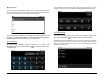
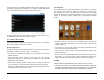
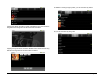
Tap Add Alarm to input additional alarm settings. After inputting the hour
and minute settings for the new alarm, you will see a screen that allows
you to set On/Off, Repeat, Ringtone and Vibrate functions.
To delete an alarm setting, tap the alarm setting you wish to delete, then
tap the delete button in the lower right to confirm.
8.13 Aldiko e-Book Reader
Your Tablet supports Aldiko as the default e-book client. From the Main
Menu, select Aldiko to launch the e-reader.
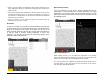
Downloading Books
Before you attempt to download books online, be sure a wi-fi connection
is available. Choose your book and go… it’s that easy!
¾ The books you download are saved on your internal SD card in the
eBooks directory.
¾ When browsing online catalogs, books that you have already
downloaded will have a green button indicating that the title has
already been downloaded.
¾ Some online catalogs provide a search function to help you find what
you are looking for. Check the option menu when browsing a catalog.
¾ When you download a book, it is automatically assigned tags based on
its subjects (novel, science-fiction, etc.).
The Bookshelf
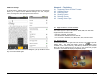
The bookshelf gives a visual representation of the books in your library
(you can also get a list view by tapping the home icon in the left corner
and selecting List View). The shelf can be filtered by the following
criteria: all books by title, all books by author, all books by rating, Recent
Reads (in progress), recently added books, and Recently Finished
books.
¾ Pressing a picture of a Book on your bookshelf for two seconds will
open a popup menu that allows you to open the book, view the book
details or delete it.
¾ The books you are currently reading are easily accessible from the
home screen in the Recent Reads list.
¾ Once you start reading a book, it will automatically be added to the
Recent Reads list.
¾ Books on the Recent Reads list will be removed from the list when you
finish them. You can also remove them manually by pressing and
holding the book and selecting the Remove from Recent list option.
Reading
Just tap a book on the bookshelf to open it and you’re on your way.
¾ There are two ways to move back and forth through the pages: you
can swipe your finger left and right across the page, or you can tap the
left edge of the screen to go back or the right edge to go forward.