
User manual




A7+InternetTablet–UserManualv1.5 Page38
¾ When you stop reading, the application will remember which page you
were reading and bring you right back to that page the next time you
open the book.
¾ Some books include links embedded in the text. Select a link by long
pressing and holding the link. If the link is a webpage, it will open in
your browser. If the link points to another book, that book will download
and import into your library.
¾ From any screen, you can quickly get back to the home screen by
selecting the Home menu option.
Bookmarks
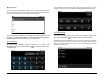
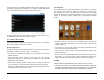
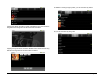
To help you navigate, it is possible to place bookmarks, and jump back
and forth within a book. Tap the Menu Smart Key on the black bezel to
bring up the submenu at the bottom of the page, the tap the Go To
button as shown below left. This will open a popup menu that allows you
to view the table of contents, existing bookmarks, or add a new
bookmark. You can also move forward or backward by tapping on the
slider bar just above the submenu.
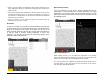
Night and Day Settings
For your convenience, you can set the display to appear black text on
white pages, or reversed white text on black background. To toggle
between the day and night modes, just tap the Menu Smart Key on the
black bezel to bring up the submenu at the bottom of the page, then tap
the Day/Night button.
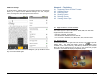
Adjusting the Brightness
While reading a book, you can adjust the brightness of the display
without leaving the page by swiping your finger up or down along the left
edge of the screen (this can be reconfigured in the settings).
You can also adjust the brightness by tapping the Menu Smart Key on
the black bezel to open the popup menu at the bottom of the screen,
then selecting Settings>Brightness.