
User manual




A7+InternetTablet–UserManualv1.5 Page40
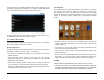
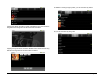
Tapping on a folder group will open that folder to display thumbnails of
the individual photos:
If your folder has more photos than can be displayed on the screen at
one time, there is a scroll bar at the bottom that will allow you to move
through the thumbnails to find the image you want to look at.
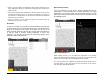
Tap the thumbnail of the photo you want to view and the image will open
up full screen. You can use your fingers to pinch/zoom or tap the photo
to display the -/+ magnifier buttons. Tapping the photo also brings up a
menu at the bottom that will allow you to play a slide show of images.
9.3 Editing Photos
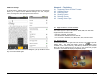
Next to the Slideshow button at the bottom is a Menu button that gives
options to Share, Delete and Edit photos. This menu can also be
accessed at any time by tapping the Menu Smart Key on the black bezel.
9.4 Sharing Photos
The bottom menu has an option to Share your photos. Facebook,
Bluetooth and Twitter are default options, and if you have set up your
Tablet with an email account (see Chapter 7) there is also an option to
share via email.
9.5 Deleting Photos
Use the bottom menu to delete photos as desired.