
User manual




A7+InternetTablet–UserManualv1.5 Page43
10.4 Playing Music
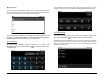
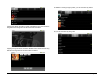
Once you navigate down to an individual song, you will see the player
control panel. Just tap on the play button to begin. Note: you can also
automatically launch the Music Player and begin playing a song by
tapping it in OI File Manager or other explorer app that allows you to
access individual files.
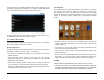
At the top of the screen are 3 buttons the give you options for Song List,
Shuffle and Repeat/Repeat All.
Icons Description
List view of songs
Shuffle Play - toggle between choices:
Grey = Shuffle Play is off
Green = Shuffle Play is on
Repeat Play - toggle between choices:
Grey = Repeat Play is off
Green with Two Arrows = Repeat Play is on
Green with Arrows and O = Repeat current song only
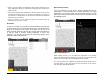
If you don’t want to navigate down to a specific song, you can tap the
Menu Smart Key on the black bezel to reveal a menu at the bottom that
allows for Party Shuffle or Shuffle All. Just tap either of those buttons to
begin playing immediately. A list view of all songs will appear, along with
a green play indicator to let you know what track is playing.
10.5 Creating Playlists
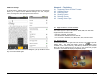
Once you have navigated down to a song title, you can tap the Menu
Smart Key on the black bezel to bring up a menu with additional choices.
Tap the Add to Playlist button at the bottom center.