
User manual






A7+InternetTablet–UserManualv1.5 Page46
11.4 Backup & Restore
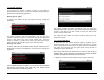
If you would like to backup or restore the data on your tablet, the
Backup/Restore utility can be accessed by launching Settings>Privacy>
Backup/restore settings and applications.
Backing up Your Tablet
To backup your Tablet, tap the top selection Backup settings and
applications.
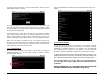
The backup procedure will start automatically and you will see a
notification that reads, “System is doing backup settings and applications
process. It may take a long time to finish. Please wait.” When the
backup is complete, you will see the name of the backup file and the
location where the file has been stored on the internal memory.
Restoring Your Tablet
To restore data from an automatic backup, launch Settings>Privacy>
Backup/restore settings and applications and tap Restore settings and
applications.
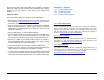
A list of available backups will appear. The numeric file name reveals the
date and time of the backup – year, month, day, hour, minute, second.
Tap on the backup you would like to restore.
The restore process will begin automatically and you will see a
notification that reads, “System is doing restore settings and applications
process. It may take a long time to finish. And will auto reboot when
process if done. Please wait.”
The Tablet will reboot when the restore is finished, taking you to the
initial unlock screen.
11.5 Factory Data Reset
In the event that your Tablet develops operating problems due to
software induced issues, it is possible to restore the Tablet to original
factory specifications and clear out any software conflicts or malware that
may have been introduced into the system while surfing the web or
installing third party applications.
The Factory Data Reset has been known to correct a wide variety of
software issues, but it is important to note that the procedure will delete
all data in the Tablet and the data cannot be restored.
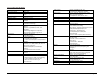
To begin the procedure, launch Settings>Privacy>Factory data reset.