
User manual





A7+InternetTablet–UserManualv1.5 Page47
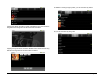
A warning screen will inform you that all data will be erased. Tap the
Reset device button to continue.
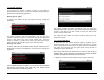
A second warning asks you to confirm if you want to erase all of your
personal information. Tap the Erase everything button to continue. Note:
You can escape the reset procedure at any point by tapping the Previous
Smart Key on the black bezel.
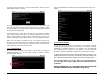
A prompt will warn you that you must make sure the Tablet is plugged
into a working power outlet via the AC charger, regardless of how much
battery power remains. A battery failure during the reset process can
result in catastrophic system failure that can severely damage the Tablet.
Make sure the Tablet is plugged into the AC charger and follow the
prompts. The Tablet will reboot, re-installing the factory-loaded software
recovered from the main image file. When the reset is complete, the
Tablet will return to the main unlock screen.
11.6 Search Function
The Tablet offers the ability to search the web as well as a variety of
installed applications. To set the search options or initiate a search,
launch Settings>Search.
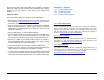
Tap on Searchable items to determine which items shall be open to the
search:
11.7 Firmware Updates
To correct issues or enhance performance and features, firmware
updates may be published from time to time on the company’s website.
Installation of upgraded firmware is not required but is recommended.
The updates are not “pushed” to the Tablet; you must check the
eLocitynow website periodically to make sure your firmware is current.
To determine the firmware version currently installed on your tablet, go to
Settings>About device and scroll to the bottom to see Build number. The
last 5 digits of the Build number indicate your current firmware version.
The Firmware Update for your A7+ Tablet must be downloaded to
your PC or Mac and copied to a MicroSD card or USB flash drive for
installation.
DO NOT RENAME THE FILE - THE TABLET WILL ONLY RECOGNIZE
THE NEW FIRMWARE IF THE FILENAME IS UPDATE.ZIP.