
User manual

A7+InternetTablet–UserManualv1.5 Page2
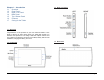
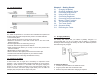
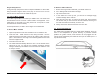
1.5 Top / Bottom Panel
1.6 Features
The Tablet is optimized for rich internet and entertainment experiences
as well as daily business and productivity needs. The Tablet features:
• Touch screen panel
• Wi-Fi network connection for quick access to the web
• Bluetooth connection to send and receive data to and from other
Bluetooth devices
• Browser applications for web surfing on the go
• Chat with friends through the built-in webcam
• Email exchange that allows you to keep in touch with personal and
business contacts
• Media Player for music and movies
• Built-in camera to take digital pictures and record video clips
• Powerful tools and office programs for your business needs
• USB connection for connecting external flash memory
1.7 Caring for the Tablet
A clean screen free of finger oils is necessary for responsive touch
operation. Use a cleaning solution made specifically for touch screens,
applying a small amount to a microfiber cloth and gently wiping the
screen. Do not use paper products, even soft facial tissue which can
scratch the screen, and never spray liquid directly onto the tablet as
overspray may seep into the DC input or IO ports.
Chapter 2 – Getting Started
2.1 Charging the Battery
2.2 Checking the Battery Status
2.3 Connecting USB Devices
2.4 Using a Micro SD card
2.5 Connecting Earphones
2.6 Connecting an External Monitor
2.7 Mouse / Finger Functions
2.8 The Software Keyboard
2.9 The Power Switch
2.10 Suspense Mode
2.11 Rebooting the Tablet
2.1 Charging the Battery
The battery that comes with your Tablet is partially charged. It is
recommended that you use your Tablet until the battery is completely
discharged before charging the battery the first time. Batteries perform
best after being fully charged.
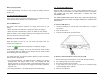
To Charge the Battery
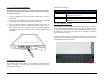
1. Connect the power cable to the Tablet as shown.
2. Plug the power cable into an electrical outlet.
3. Remove the power cable when charging is complete.