
User manual

A7+InternetTablet–UserManualv1.5 Page3
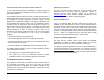
Battery Charging Time
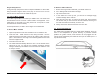
It takes approximately 3.5 hours to fully charge the battery while the
power is off.
2.2 Checking the Battery Status
There are two ways to check the battery level of your Tablet: the Power
LED Indicator and the Battery Icon on the Status Bar.
Power LED Indicator
The Power LED Indicator indicates the charge level status of your
battery:
• When the Power LED indicator is orange, the battery is charging.
• When the Power LED indicator is green, the battery is fully charged.
When the battery is fully charged, disconnect the charger from the outlet
first, then disconnect it from the Tablet.
Battery Icon on the Status Bar
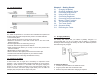
While the Tablet is turned on, you can check the battery level icon
located on the Status Bar.
A green icon indicates that the battery is completely charged.
While the battery is charging, the icon on the status bar starts scrolling
on the display. When the battery is fully charged, the icon stops scrolling
and indicates green with a flash logo.
The Tablet will have the following defined behaviors when the battery
reaches certain charge levels:
• 15% Charge Remaining – the Tablet will show a “Battery Low” warning
message when the charge drops to 15%. The message will also
appear at bootup or when the Tablet is reactivated after being put in
Sleep Mode if the AC charger is not plugged in and battery capacity is
less than 15%.
• 6% Charge Remaining – the Tablet will power off automatically.
2.3 Connecting USB Devices
With the USB 2.0 host port, you can connect USB flash drives to your
Tablet to access external files. The Tablet supports drives up to 64GB in
size. Please note that some older USB 1.1 devices may have
compatibility issues.
The Tablet supports flash memory drives only; it does not support other
mechanical drives and it does not support tethering to computers and
other devices.
To Connect USB Devices
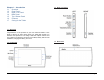
1. Locate the USB port on the left side of the Tablet (see “1.3 Right /
Left Panel”).
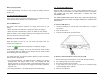
2. Open the port cover.
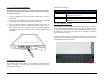
3. Connect the USB device as shown below.
To Remove an External Drive Connected to the USB
1. Before removing an external drive, you should unmount the drive.
2. Go to Settings>SD card & device storage>
3. Scroll down and tap Unmount USB0.
4. In the status bar at the top left, you will see a message saying
“External storage safe to remove”.
5. Remove the USB drive.