
User guide


Table Of Contents
- Using Your eMachines Flat-Panel Monitor
- Unpacking the monitor
- Connecting the monitor
- Starting the monitor
- Adjusting monitor settings
- Power management
- Maintaining
- Troubleshooting
- No power
- No picture
- Display colors are wrong
- Picture has shadows or “ghosts”
- Color is not uniform
- Image is not sized or centered correctly
- The image remains after switching off the monitor
- The image is unstable
- The message “No Input Signal” appears on the screen
- The monitor has pixels that are always dark or too bright
- Specifications
- Safety, Regulatory, and Legal Notices
Using Your eMachines Flat-Panel Monitor
8
Using the Direct Keys
While the OSD Main Menu is inactive, you can use three direct function keys to change settings.
Auto setup by direct key
Use auto setup whenever you apply a new video mode or change the refresh rate. While auto
setup is running, you should have a stable image displayed on the screen. Do not move items
around the screen, play games, or view video during auto setup.
After you have executed auto setup for a particular mode, the display will store the new values
in its permanent memory.
To use auto setup by direct key:
1 With no OSD menu open, press the Auto button. This starts the auto setup.
The image will change color and appear to jitter during auto setup. After auto setup is
complete, you are asked whether the image is OK.
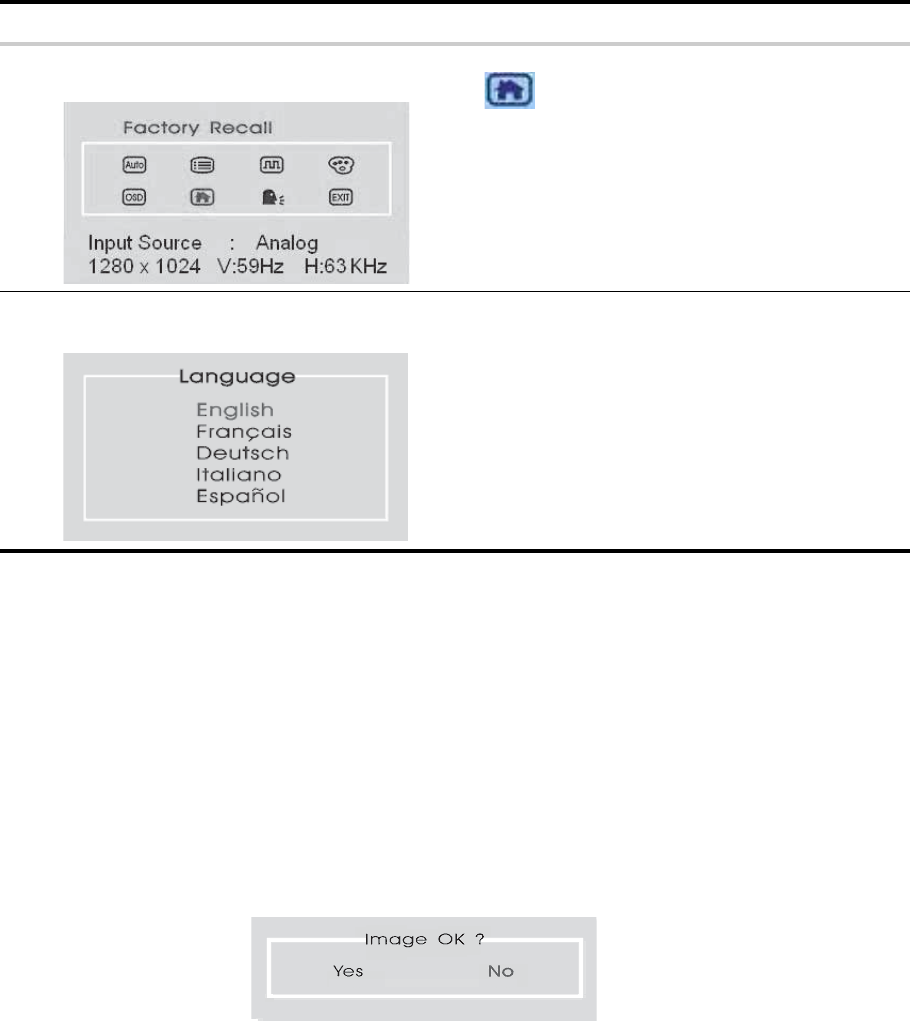
Factory Recall
Press the + or – button to highlight the Factory icon
, then press the Menu button to reset the monitor
to factory default settings.
Language menu
Press the + or – button to highlight the OSD menu
language of your choice. then press the Menu button to
select it. Settings take effect immediately.
OSD Menu Description