
User guide


Table Of Contents
- Using Your eMachines Flat-Panel Monitor
- Unpacking the monitor
- Connecting the monitor
- Starting the monitor
- Adjusting monitor settings
- Power management
- Maintaining
- Troubleshooting
- No power
- No picture
- Display colors are wrong
- Picture has shadows or “ghosts”
- Color is not uniform
- Image is not sized or centered correctly
- The image remains after switching off the monitor
- The image is unstable
- The message “No Input Signal” appears on the screen
- The monitor has pixels that are always dark or too bright
- Specifications
- Safety, Regulatory, and Legal Notices
www.emachines.com
9
2 If the image looks correct, choose Yes. The OSD will close automatically.
-OR-
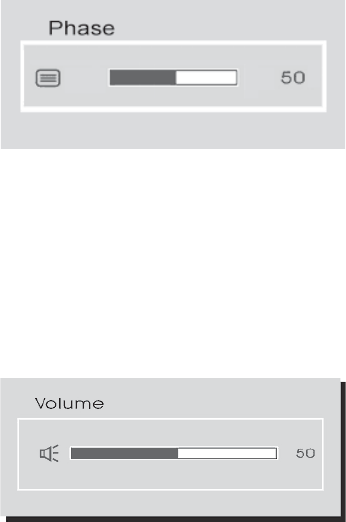
If the image requires further adjustment, choose No. The Phase bar opens to let you adjust
the setting manually.
3 Adjust the phase by pressing the + or – buttons. When all text appears well focused and
there is no instability in the image, press Menu to end the adjustment and close the OSD
menu.
Audio setup by direct key
To adjust the volume by direct key:
1 With no OSD menu open, press the + or – buttons. The Volume bar opens.
2 Press the + or – buttons one or more times to set the volume to a comfortable level.