
Technical Brief for Installation of Consumption Monitoring
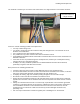


Table Of Contents
- Assessing a Site for Installation of Consumption Monitoring
- For North America and Latin America
- About the Enphase Envoy-S Metered
- About Consumption Monitoring
- Consumption Current Transformers
- Site Assessment Form
- Circuit Detail Form
- 200A Consumption CT Dimensions
- Location of the Envoy-S Metered
- Installation of Consumption CTs
- Installing CTs in a simple scenario
- Installing CTs in Eaton Service Panels / Solar Power Center
- Installing Multiple Conductors in a Single CT
- Installing Parallel Connected CTs for 400A Services and Crowded Service Panels
- Calculating Whether Multiple Conductors Fit Within a CT
- Example Calculations for a Service Panel
- Retrofitting the Electrical Service for CT Installation
- Extending the Consumption CT Conductors
- Net Consumption versus Total Consumption
- Monitoring with the Installer Toolkit Mobile App
- Troubleshooting
- Viewing Sites with Consumption Monitoring

Installing Consumption CTs
2016 Enphase Energy Inc. All rights reserved. January 2016
12
Monitoring with the Installer Toolkit Mobile App
The Installer Toolkit allows you to monitor and troubleshoot consumption monitoring once it has been
configured. You can view production and consumption data from the Installer Toolkit Overview page, as long
as the phone and Envoy-S are paired in AP Mode. This data is near real-time consumption data that updates
every 60 seconds. A blue “updating” bar displays every 60 seconds on the upper edge of the screen, to
indicate that production and consumption data is updating.
Once the system is installed, the system owner has access to the consumption data from Enphase
MyEnlighten or from their Enlighten system page. The consumption monitoring is available to the system
owner in both MyEnlighten and Enlighten Manager, but is not available to installers without permission from
the system owners.
Troubleshooting
One method to validate that the consumption monitoring is installed correctly is to turn off the PV system and
then validate that the consumption reported by the Installer Toolkit app is the same as what the main service
meter is reporting. This requires that the smartphone is paired to the Envoy in AP Mode.
If the consumption monitoring does not match the main service meter data, take these steps.
• Confirm that the consumption meters are monitoring all circuits of the main service meter.
• Confirm that the consumption CT on line 1 is wired to the terminal IA (line 1) of the Envoy-S Metered.
These are the fourth CT wiring terminals from the left.
• Confirm that the CT on line 2 is wired to the terminal IB (line 2.) These are the fifth CT wiring
terminals from the left.
• Confirm that the service conductor (line 1) is the same conductor that is wired to Power Terminal A
(line 1) of the Envoy-S Metered. Confirm this by testing the voltage between line 1 at the main
service panel and Power Terminal A of the Envoy-S Metered. The voltage should be 0V between
these terminals and 240V between Line 1 of the main service and Power Terminal B (line 2) of the
Envoy-S Metered.
• Confirm that the consumption CTs are installed with the arrow facing toward the site loads.
• Confirm that the consumption CTs are installed with the white conductor on the top terminal and the
blue conductor on the bottom terminal.
• If installing multiple conductors in a single CT, turn on the load breakers individually and confirm with
the Installer Toolkit app that each circuit increases the load being reported. If the consumption
monitoring is reporting a negative load, the line conductor and the CT are likely not aligned.