
Quick Guide

About Your Product 3
Using the Touch Panel
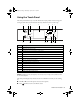
The touch panel makes it easy to use all the features of your product. To save energy, the
screen goes dark after several minutes of inactivity. Touch the screen to wake it up.
Caution: Press the touch panel gently with the tip of your finger; don’t press too hard
or use sharp objects.
The touch panel displays only the buttons that are available for the task you are working
on.
■ Press l or r to view more photos or access more options.
■ Press Home to return to the Home screen.
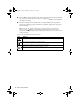
Number Description
1 Turns product on/off
2 Returns to the Home menu
3 Changes the view of photos or crops photos
4 LCD screen shows menus and status
5 Sets the number of copies
6 Use the arrow keys and
OK button to navigate menus
7 Turns Auto Answer on/off
8 Shows wireless network status
9 Ejects and closes the CD/DVD tray
10 Displays detailed settings for each mode
11 Blue status light
12 Cancels/returns to the previous menu
13 Stops copying/printing/scanning or resets settings
14 Starts copying/printing/scanning
Home
CD Tray
Display
Crop
Menu
Back
Start
Reset
123 4 5
14121110
6
98
7
13
Art837QG.book Page 3 Wednesday, April 27, 2011 4:07 PM