
User guide





18 Creating and Using Effects 231
Define a pattern shape
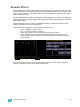
Shapes can be defined for any relative effect (focus, color, or linear).
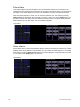
To define a shape, press the {Edit} softkey beneath the pattern editor. The softkeys will change to
{Apply}, {Restore}, {Clear}.
• Press {Clear} to clear the pattern.
• Draw a new pattern using your finger (or the mouse). If you want to return to the original
pattern, press {Restore} before pressing apply.
• When you have the proper pattern drawn, press {Apply}. The pattern will be applied to the
effect.
Program a new relative effect
To open the effects list press:
• [Effect] [Effect]
Establish the number of the effect by pressing:
• [Effect] [4] {Type} {Linear/Focus/Color} [Enter]
The effect will appear in the effect list and the CIA will repaint with the effect details visible.
Manipulate the effect using the encoders, effect graph, and/or property fields so that the
effect meets your needs (see Effects Editor, page 219 for details on effect properties and
encoders).
Note:
If you delete a preprogrammed effect (for example, after making changes to it) the
effect will return to its default value. Preprogrammed effects (901-916) cannot be
deleted.
You can also copy effects to another effect location and modify them from there.
This will leave the original effect untouched.
• [Effect] [904] [Copy To] [8] [Enter]